Why Is My Printer Offline? Common Causes and Easy Fixes
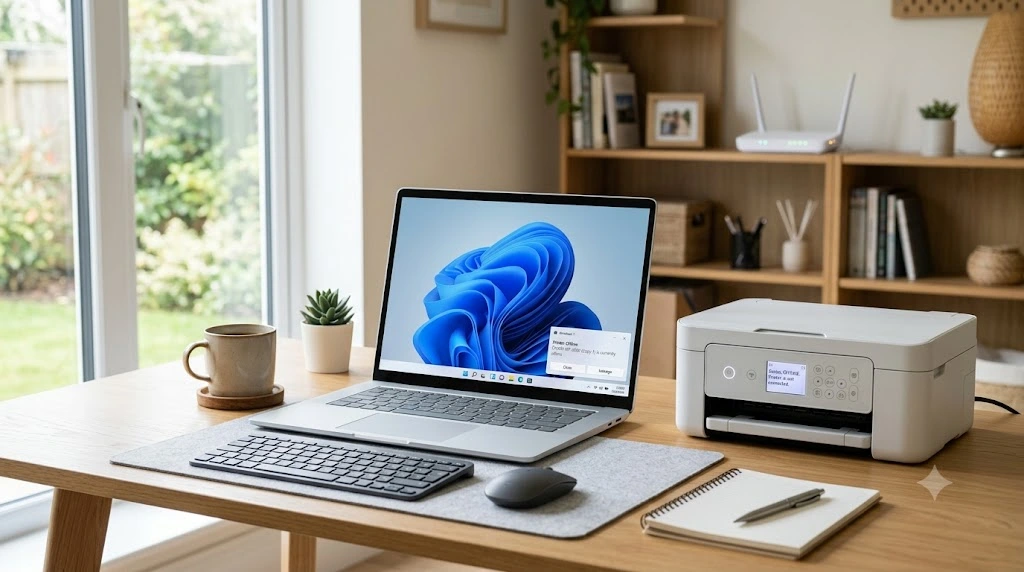
If you’ve ever been ready to print an important document only to see your printer marked as “Offline,” you know how frustrating it can be. It always seems to happen at the worst possible moment, whether you’re printing school assignments, shipping labels, contracts, travel documents, or paperwork for work. Most people assume something is seriously wrong with the printer, but that’s rarely the case.
Over the years, one thing has become clear: a printer showing as offline usually isn’t caused by a major hardware failure. More often, it’s the result of a simple communication problem between the printer and your computer. A loose cable, a Wi-Fi connection issue, an outdated driver, or a stuck print spooler can all trigger the message. The challenge is knowing where to start.
This guide walks through the most common causes and the fixes that actually work. The steps are arranged from the quickest checks to more advanced troubleshooting, so you can solve the problem without wasting time on unnecessary solutions. Whether you use an HP, Canon, Brother, Epson, Lexmark, or another printer brand, these methods apply to most modern printers and operating systems.
What Does “Printer Offline” Mean?
A printer showing an offline status does not always mean it is broken. It simply means your computer cannot communicate with the printer. The printer may be turned off, disconnected from the network, or unable to receive print jobs because of a software or connection problem.
It is also important to understand that an offline printer is different from other printer errors. A printer that is paused has stopped printing because of a user setting. A printer that shows not responding usually has a communication problem. An error state often points to a hardware issue, such as a paper jam or low ink. Knowing the difference makes it easier to choose the right solution.
If your printer comes back online but you still need to print from your smartphone or tablet, our guide on how to print from your phone walks you through the process step by step.
Quick Answer
A printer appears offline when your computer cannot communicate with it. This usually happens because of a loose cable, a weak Wi-Fi connection, incorrect printer settings, outdated drivers, or a print spooler problem.
Whether you need to print homework, shipping labels, travel documents, or important paperwork, these troubleshooting steps will help you get your printer working again.
Common Reasons for a “Printer Offline” Status
Before you start fixing the problem, it helps to understand why it happens. A printer can go offline for different reasons. Some issues are related to the printer, while others come from your computer or network.
Below are the most common causes of a printer offline error.
Physical Connection Issues
A loose or damaged cable is one of the simplest reasons a printer goes offline. If you use a USB or Ethernet cable, make sure it is connected securely at both ends. Look for signs of damage, such as bent connectors or worn cables.
Also, check that the printer is turned on and has no warning lights. If possible, try another USB port or a different cable. This helps you rule out a faulty connection.
If your printer has a display screen, check for warning messages or flashing lights. These alerts can point to problems such as a paper jam, an open cover, or an empty paper tray. Fixing these issues may bring the printer back online without changing any settings.
Wireless Network Connectivity
If you have a wireless printer, both your computer and printer must be connected to the same Wi-Fi network. If one device connects to a different network, they cannot communicate with each other.
If you recently changed your Wi-Fi name or password, your printer may still be trying to connect to the old network. Reconnect the printer using the updated network details before trying to print again.
Network Infrastructure Problems
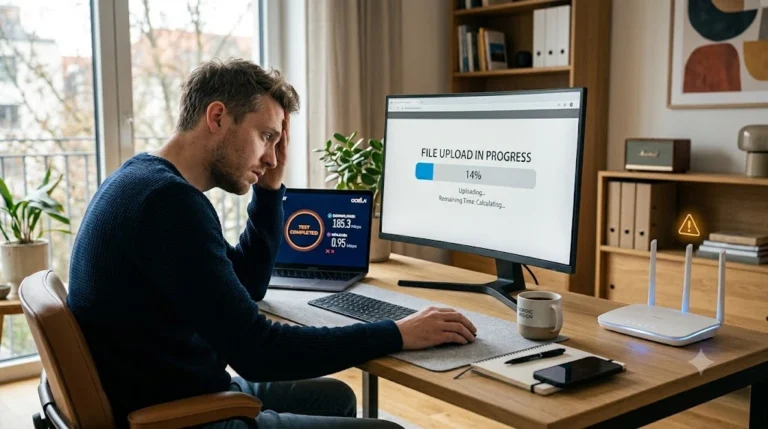
Some home and office networks have more than one wireless band or use mesh Wi-Fi systems. If your computer connects to one network while the printer connects to another, they may not communicate correctly. Guest Wi-Fi networks can also block printers from appearing on your computer. Make sure both devices are connected to the same network before printing.
If other devices in your home or office are also having trouble connecting to the internet, the problem may be with the network instead of the printer. Wait for the connection to stabilize after restarting the router before testing the printer again.
Printer Configuration Settings
Your computer may be set to use the printer in offline mode. This setting can prevent print jobs from reaching the printer, even when it is connected.
Another common issue is a paused print queue. If old print jobs are stuck, the printer may stop responding until the queue is cleared.
Driver-Related Issues
Some operating systems install a basic printer driver automatically. While this driver supports simple printing, it may not include all the features your printer needs.
IP Address Conflicts
Every network printer has its own IP address. If another device uses the same address, your computer may lose communication with the printer.
Print Spooler Service
The print spooler manages every print job sent from your computer. If this service stops working or becomes overloaded, your printer may show as offline.
Restarting the print spooler often clears temporary errors and restores normal printing.
Printer Offline Quick Checklist
Before trying advanced troubleshooting, check these basic items. Many printer offline problems are fixed in just a few minutes. If you’re in a hurry, start with the checklist below. Many printer offline problems can be fixed in less than five minutes.
- Make sure the printer is turned on.
- Confirm the printer and computer are connected to the same Wi-Fi network.
- Restart the printer and your computer.
- Restart your wireless router if you use a network printer.
- Check that all USB or Ethernet cables are connected securely.
- Clear any stuck print jobs from the print queue.
- Make sure Use Printer Offline is turned off.
- Set the correct printer as the default printer.
If the printer is still offline after these checks, continue with the troubleshooting steps below.
The Most Common “Printer Offline” Fixes: What to Check First
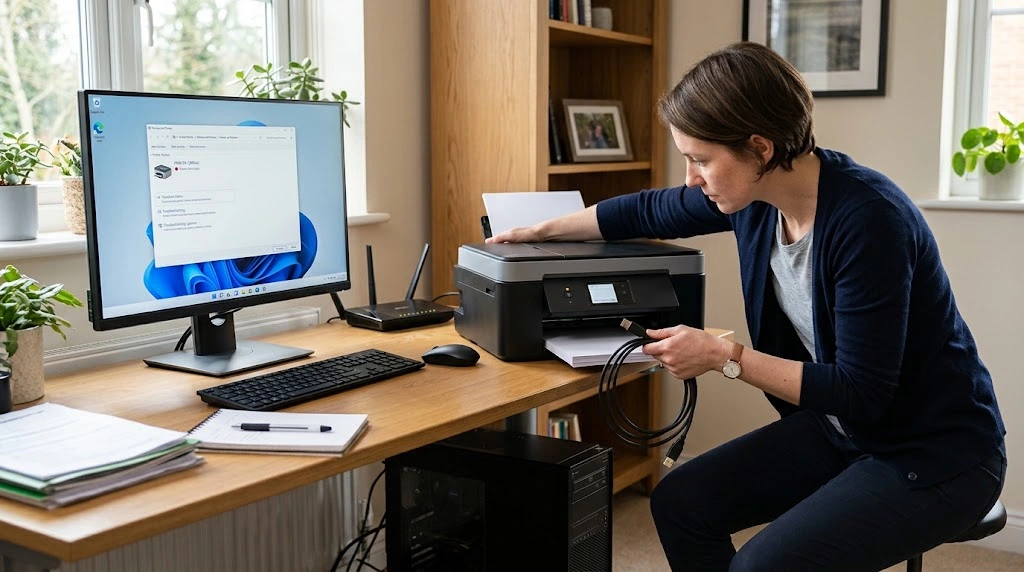
Now that you know the possible causes, it’s time to fix the problem. Start with the simple solutions below. They solve most printer offline issues and only take a few minutes.
Power Cycle Your Devices
A simple restart can fix many printer problems. Turn off your printer and your computer. If you use a wireless printer, restart your router as well.
Unplug the printer from the power outlet for about 30 seconds. Then plug it back in and turn everything on. Wait until the printer finishes starting before you try to print again.
Wait until the printer finishes its startup process before sending another print job. Trying to print too soon may cause the computer to think the printer is still unavailable.
Check Your Connections
If you use a USB or Ethernet printer, check every cable carefully. Make sure each cable is firmly connected to both the printer and your computer.
If the cables look damaged, replace them. You can also try another USB port or Ethernet port. A loose connection is often the reason a printer appears offline.
Verify Your Wireless Connection
For wireless printers, confirm that both devices are connected to the same Wi-Fi network. If your computer is on one network and the printer is on another, they cannot communicate.
If needed, reconnect the printer to your Wi-Fi. Moving the printer closer to the router can also improve a weak wireless signal. Wireless printers should stay within a strong Wi-Fi signal. If the signal is weak, the printer may disconnect and appear offline.
Check Sleep Mode Settings
Many modern printers enter sleep mode after they have been inactive for a while. Sometimes the computer cannot wake the printer correctly, making it appear offline even though it is still connected. Restart the printer and try printing again.
Review Printer Status on Your Computer
Sometimes Windows sets the printer to offline mode by mistake. Open Settings > Bluetooth & devices > Printers & scanners and select your printer.
Open the print queue and check that Use Printer Offline is not enabled. If it is checked, turn it off. Also, make sure printing is not paused.
Clear the Print Queue
A stuck print job can stop all other documents from printing. Open the printer queue and remove any jobs that are waiting or showing an error.
After clearing the queue, send a small test page to the printer. If the test prints, the problem is likely solved.
Set the Correct Printer as Default
If you have more than one printer installed, your computer may send print jobs to the wrong one.
Open your printer settings and choose the printer you want to use. Set it as the default printer so future print jobs go to the correct device automatically.
Other Less Common “Printer Offline” Fixes: Check These Next
If your printer is still offline, don’t worry. The basic fixes solve most problems, but some issues need a little more troubleshooting. Work through the steps below one by one until your printer comes back online.
Resolve the “Manual Offline” Loop
Windows can sometimes place a printer into offline mode without you noticing. This usually happens after a system update or a temporary connection problem.
Open your printer settings and view the print queue. Select the Printer menu and make sure Use Printer Offline is not checked. If it is enabled, turn it off and try printing again.
Is Your Network Actually Seeing It?
Your computer must be able to find your printer on the network. If it cannot, the printer may stay offline even though it is turned on.
Open your list of network devices and check whether the printer appears. If it is missing, restart your router and reconnect the printer to the network. Make sure both devices use the same Wi-Fi connection.
The 30-Second “Capacitor Drain”
Sometimes a normal restart is not enough. A complete power reset clears temporary hardware errors stored inside the printer.
Turn off the printer and unplug it from the power outlet. Wait at least 30 seconds before plugging it back in. Then turn it on and allow it to finish starting.
Check for “Port Wiggle”
Loose USB or Ethernet cables can interrupt communication between the printer and your computer.
Disconnect the cable and inspect both ends for dust or damage. Plug it back in firmly or try another cable if you have one. If you use a desktop computer, connecting the cable to a different USB port may also help.
The “Remove and Refresh” Strategy
Sometimes the printer settings stored on your computer become corrupted. Removing the printer and adding it again creates a fresh connection.
Delete the printer from your computer’s printer settings. Then use the Add Printer option to install it again. This often fixes communication problems without changing any hardware.
Update Your Printer Drivers
Outdated drivers are a common reason printers go offline. Driver problems often appear after installing a Windows or macOS update. Visit your printer manufacturer’s support page to download the latest driver for your specific printer model.
Visit your printer manufacturer’s support page and download the latest driver for your printer model. After installing the update, restart both your computer and printer.
Ditch the Generic “Class” Drivers
Your operating system may install a basic printer driver automatically. While this driver allows simple printing, it may not support every feature of your printer.
Replace the generic driver with the full software package provided by the printer manufacturer. This gives your computer better communication with the printer and can prevent future offline errors.
Finish Those Pending Updates
If your computer has a pending system update, some printer services may not work correctly until the update finishes.
Install any available updates and restart your computer. Once the restart is complete, check whether the printer is back online.
VPNs: The Invisible Wall
A VPN can sometimes block communication with local devices, including printers. This is common when working from home or using a company VPN.Temporarily disconnect the VPN and try printing again. If the printer works, check your VPN settings for an option that allows access to local network devices.
If disconnecting the VPN fixes the problem, check whether your VPN offers a setting such as Local Network Access or Split Tunneling. These options allow your computer to communicate with nearby devices while the VPN remains active.
This problem is common for people working from home. If you connect to your company’s VPN before printing, the VPN may block communication with your local printer.
Restart the Print Spooler Service
The Print Spooler controls every print job sent from your computer. If the service stops responding, your printer may remain offline.
Open the Services app on Windows and find Print Spooler. Right-click the service and choose Restart. Wait a few moments before sending another print job.
Run the Built-In Printer Troubleshooter
Windows includes a troubleshooting tool that can detect and fix common printer problems automatically. Open Settings, go to System, then Troubleshoot, and run the Printer Troubleshooter. Follow the instructions shown on the screen and apply any recommended fixes.
The troubleshooter can automatically detect common problems such as driver issues, incorrect printer settings, and communication errors. Follow any recommendations before testing the printer again.
Let Windows Try to Save Itself
If none of the previous steps work, let Windows search for additional problems. The operating system may detect missing drivers, incorrect settings, or communication errors that are not easy to find manually.
Complete the troubleshooting process and restart your computer if Windows recommends it. Then print a test page to confirm the printer is working correctly.
Why Does My Printer Keep Going Offline?
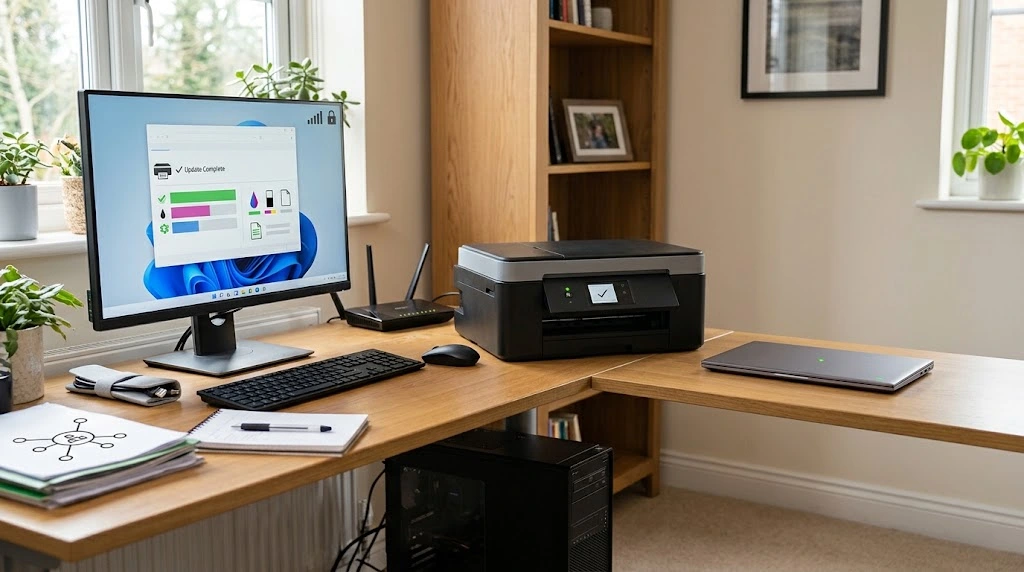
If your printer goes offline repeatedly, the problem is usually related to your network or printer settings. Weak Wi-Fi signals, outdated drivers, changing IP addresses, and sleep mode can all interrupt communication between your computer and the printer.
If the issue happens often, update the printer driver and firmware, make sure the printer has a strong wireless signal, and consider assigning it a static IP address. These steps can improve connection stability and reduce repeated offline errors.
If you print invoices, shipping labels, receipts, or customer documents every day, a printer that frequently goes offline can slow your business. Keeping the printer driver, firmware, and network settings updated can improve reliability.
Rarer “Printer Offline” Cases That Require Professional Help
Most printer offline problems can be fixed by checking the connection, updating the driver, or restarting your devices. If you have tried every step in this guide and the printer is still offline, the problem may be more serious.
Older printers can develop hardware faults over time. A damaged network card, failing USB port, or outdated firmware may prevent the printer from communicating with your computer. In some cases, the printer may also display error lights or error codes that point to an internal problem.
If several computers on the same network cannot find the printer, the issue may be with your office network or print server. This type of problem often requires help from an IT professional.
You should also contact the printer manufacturer’s support team if your printer continues to go offline after reinstalling the driver and reconnecting it to the network. They can help you check for hardware failures, firmware issues, or model-specific problems.
Common Printer Offline Problems and Their Fixes
The table below summarizes some of the most common printer offline problems and the best solutions.
| Problem | Possible Cause | Recommended Fix |
| Printer shows offline | Loose USB or Ethernet cable | Reconnect or replace the cable |
| Printer offline on Wi-Fi | Weak or incorrect network connection | Reconnect to the correct Wi-Fi and restart the router |
| Print jobs are stuck | Full or corrupted print queue | Clear the print queue and try again |
| Printer offline after update | Outdated or incompatible driver | Install the latest printer driver |
| Network printer disappears | IP address conflict | Assign a static IP address |
| Printer does not respond | Print Spooler service stopped | Restart the Print Spooler service |
Frequently Asked Questions
Why does my printer keep going offline?
A printer that repeatedly goes offline often has a weak network connection, an outdated driver, or an IP address conflict. Restarting the printer, updating the driver, and checking the network settings usually solve the problem.
Why is my printer offline but connected to Wi-Fi?
Being connected to Wi-Fi does not always mean the printer can communicate with your computer. Incorrect printer settings, driver problems, or a stuck print queue can still cause the printer to appear offline.
Can outdated printer drivers cause an offline error?
Yes. Outdated or damaged drivers can interrupt communication between the printer and your operating system. Installing the latest driver from the printer manufacturer’s website often fixes the issue.
Does restarting the print spooler help?
Yes. The print spooler manages every print job. If it stops responding, restarting the service can clear temporary errors and restore printing.
When should I contact a technician?
Contact a technician if your printer still shows as offline after trying every troubleshooting step, or if you notice hardware errors, flashing warning lights, or repeated firmware issues.
Conclusion
If you’ve been asking, “Why is my printer offline?”, the good news is that the answer is usually much simpler than it first appears. In most cases, the problem comes down to a connection issue, an incorrect setting, an outdated driver, or a temporary software error rather than a faulty printer.
One pattern that consistently stands out when troubleshooting printer problems is that the simplest fixes often solve the issue. Checking the connection, restarting your devices, clearing the print queue, and confirming the correct printer settings resolve most offline errors without the need for professional repair. When those steps don’t work, methodically moving through the remaining troubleshooting process usually helps identify the underlying cause.
To reduce the chances of seeing the same problem again, keep your printer drivers and firmware updated, use a stable network connection, and perform occasional maintenance, such as clearing old print jobs and checking your printer’s network settings. Spending a few minutes on preventive maintenance can save much more time when you need your printer most.