How Do I Print From My Phone? Easy Ways to Print Documents and Photos
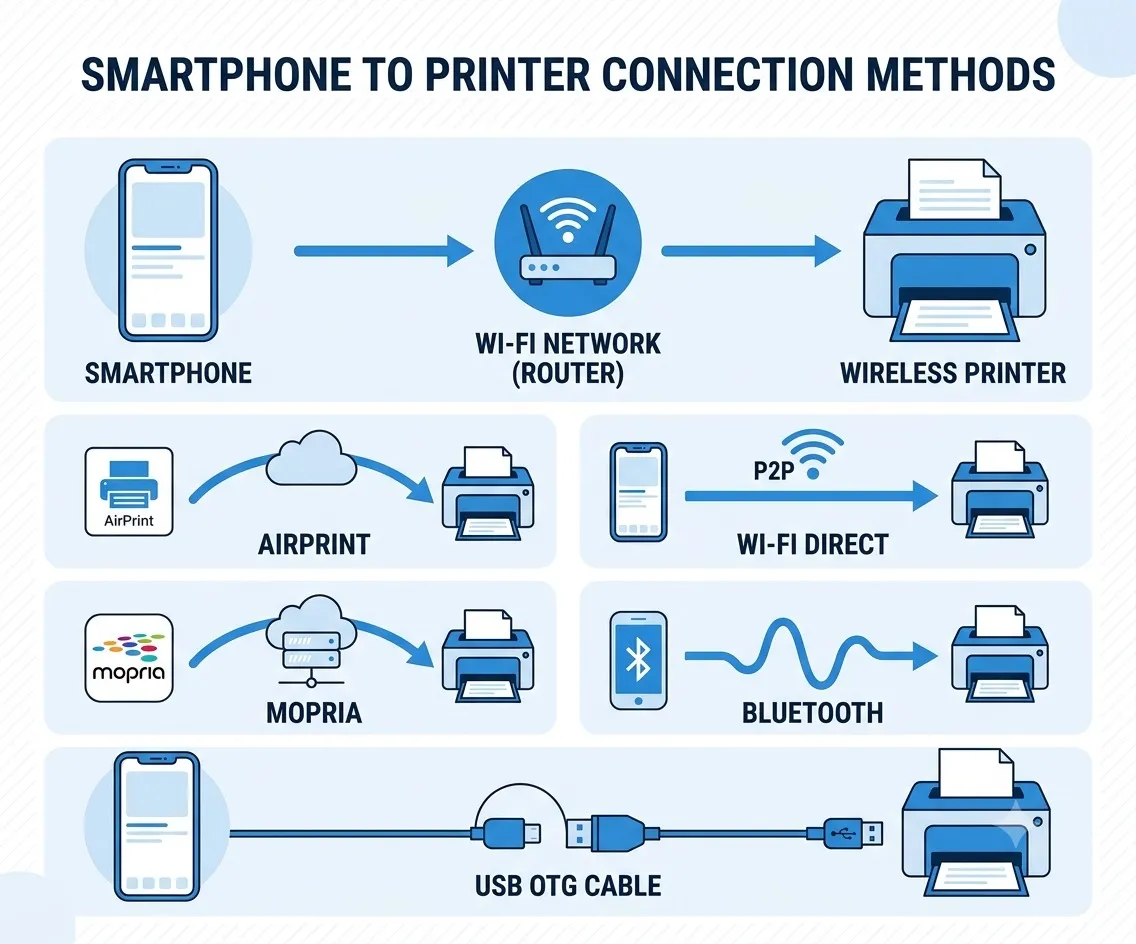
Printing from your phone has never been simpler, and you no longer need a computer to get a document, photo, or PDF onto paper. Whether you carry an iPhone or an Android device, you can send photos, documents, emails, PDFs, and web pages straight to a printer in just a few taps.
Most modern printers support mobile printing through Wi-Fi, Apple AirPrint, Mopria Print Service, or a manufacturer’s dedicated app, so you don’t need advanced technical skills to get started. This guide walks through every step in plain language, covering what you need before you print, how to connect your phone to a printer, and what to do if your phone can’t find your printer on the network.
By the end of this guide, you’ll know the easiest way to print from almost any smartphone.
Can I Print Without Installing an App?
In most cases, yes. The table below covers the fastest route for printing photos, PDFs, emails, web pages, and documents without downloading anything extra.
| Device | Steps |
| iPhone | Connect to Wi-Fi → Open the file → Tap Share → Tap Print → Select the printer → Tap Print |
| Android | Connect to Wi-Fi → Open the file → Tap the three-dot menu → Tap Print → Choose the printer → Tap Print |
These steps work for most photos, PDFs, emails, web pages, and documents, since both iOS and Android build basic printing support directly into their share menus.
Why Would You Want to Print From Your Phone?
Mobile printing has become especially valuable for remote workers and business professionals who need a paper copy on short notice. Instead of transferring a file to a laptop first, you can quickly print documents from your phone, including contracts, invoices, presentations, reports, and meeting documents, right from your pocket. This makes it easier to stay productive whether you’re working from home, traveling between meetings, or visiting a client’s office.
Common reasons people print from their phone include:
- Printing family photos
- Printing PDF files
- Printing work documents
- Printing school assignments
- Printing research papers
- Printing classroom handouts
- Printing college applications
- Printing airline boarding passes
- Printing shipping labels
- Printing event tickets
- Printing receipts or invoices
- Printing emails with attachments
- Printing forms that need a signature
Instead of emailing a file to yourself or moving it to another device first, you can send it straight from your smartphone to the printer.
What You Need Before You Start
A little preparation goes a long way toward avoiding connection errors and failed print jobs. Here’s what to check before you begin.
A Compatible Printer
Most modern wireless printers are built with mobile printing in mind, and many include native support for Apple AirPrint, Mopria Print Service, Wi-Fi Direct, and manufacturer mobile apps. If you’re working with an older printer, it’s worth checking the manufacturer’s website first to confirm whether mobile printing is supported at all.
A Stable Wi-Fi Connection
For most printing methods, your phone and printer need to be connected to the same Wi-Fi network. If they’re on different networks — for example, your phone on a guest network and the printer on the main one — your phone likely won’t be able to find the printer at all.
A Supported File
Almost every phone can print a wide range of file types, including photos, PDF files, Microsoft Word documents, Excel spreadsheets, PowerPoint presentations, Google Docs, Google Sheets, emails, web pages, and notes.
Updated Software
Keeping your software current helps prevent avoidable printing problems. It’s worth checking for updates on your phone, your printer, your printer’s companion app, and the printer’s firmware, since outdated software is one of the more common causes of failed connections. Updated software also tends to improve both compatibility and security.
How to Check If Your Printer Supports Mobile Printing
Before attempting to print from your phone, it helps to confirm your printer actually supports mobile printing features. Most newer wireless printers do, though older models may require a few extra steps or additional setup. You can check compatibility by visiting your printer manufacturer’s official website.
You can check compatibility by looking at your printer manual, visiting the manufacturer’s official website, or searching your printer’s model number online. While you’re checking, look specifically for mobile printing features such as:
- Apple AirPrint
- Mopria Print Service
- Wi-Fi Direct
- Manufacturer mobile apps
If your printer supports any of these features, you can usually connect it to your phone without ever touching a cable.
Supported Printer Brands for Mobile Printing
Most major printer brands support mobile printing in some form. The table below outlines popular brands and their available mobile printing options.
| Brand | AirPrint | Mopria | Mobile App |
| HP | Yes | Yes | HP Smart |
| Canon | Yes | Yes | Canon PRINT |
| Epson | Yes | Yes | Epson iPrint |
| Brother | Yes | Yes | Brother Mobile Connect |
| Xerox | Yes | Yes | Xerox Workplace |
| Lexmark | Yes | Yes | Lexmark Mobile Print |
Which Mobile Printing Option Is Best?
The best mobile printing method really depends on the device you’re using and where you’re printing from.
AirPrint tends to be the easiest option for iPhone and iPad users simply because it’s already built into iOS. Mopria Print Service, on the other hand, works well across many Android devices and supports thousands of printer models. Manufacturer apps are worth installing if you want extra features like scanning, cloud storage integration, printer maintenance, or ink monitoring. Wi-Fi Direct becomes the better choice when you don’t have access to a wireless router, and Bluetooth works well with portable printers, though it isn’t supported by every model.
How to Print From an iPhone Using AirPrint
If you own an iPhone or iPad, Apple AirPrint is generally the easiest way to print. Since AirPrint is built directly into iOS, you typically won’t need to install any extra software. As long as your printer supports AirPrint and both devices share the same Wi-Fi network, you can be printing within seconds.
What Is AirPrint?
AirPrint is Apple’s wireless printing technology, and it lets you print directly from an iPhone, iPad, or Mac without downloading printer drivers or connecting any cables. Many printers from HP, Canon, Epson, Brother, Xerox, and Lexmark support it out of the box.
Apple recommends keeping your iPhone and your AirPrint-compatible printer on the same Wi-Fi network for the most reliable connection. That said, if your printer supports Wi-Fi Direct or AirPrint over a direct connection, you may still be able to print without joining a traditional wireless network — it’s worth checking your printer’s documentation to confirm which connection methods it supports.
Steps to Print From an iPhone
Step 1: Connect to Wi-Fi Connect your iPhone and your printer to the same Wi-Fi network, since this is the single most important requirement for AirPrint to work.
Step 2: Open Your File Open the item you want to print, whether that’s a photo, a PDF, an email, a Word document, a web page, or a note.
Step 3: Tap the Share Button Look for the Share icon, which appears as a square with an upward arrow, and tap it to reveal more options.
Step 4: Select Print Scroll down until you see Print and tap it. Your iPhone will then search for nearby AirPrint printers automatically.
Step 5: Choose Your Printer Tap Select Printer and choose your printer from the list. If it doesn’t appear, double-check that both devices are on the same Wi-Fi network, the printer is turned on, AirPrint is supported, and the printer isn’t sitting in sleep mode.
Quick Tip: If your printer doesn’t appear right away, wait about 10 to 15 seconds before searching again, since many printers need a few moments after joining the network before they become discoverable.
Step 6: Adjust Print Settings Before printing, you can fine-tune the number of copies, choose black and white or color, enable double-sided printing, set the paper size, and select a page range. It’s worth reviewing these settings before you continue.
Step 7: Tap Print Tap Print in the upper-right corner, and your document should begin printing within a few seconds.
Benefits of AirPrint
AirPrint keeps mobile printing simple because it doesn’t require any additional software. Its advantages include no drivers to install, fast wireless printing, a secure connection, broad support across popular printer brands, and compatibility with photos, documents, emails, and web pages. For most iPhone users, it remains the fastest way to print.
How to Print From an Android Phone Using Mopria
Android phones support wireless printing as well. Many newer Android devices include a built-in print service, while others may need Mopria Print Service or a printer manufacturer’s app to unlock full functionality. If your printer supports Mopria Print Service, you’ll be able to print documents quickly without ever touching a computer.
What Is Mopria Print Service?
Mopria Print Service is a mobile printing solution built specifically for Android devices, helping them communicate with compatible printers over Wi-Fi. Many major printer brands support it, including HP, Canon, Epson, Brother, Xerox, Lexmark, and Kyocera.
Some Android phones already include Mopria out of the box; if yours doesn’t, you can install it for free from the Google Play Store. Many newer Android phones already ship with a built-in print service, but if printing is unavailable on your device, installing Mopria Print Service or your printer manufacturer’s app can add the support you need.
Steps to Print From an Android Phone
Step 1: Connect to Wi-Fi Make sure your Android phone and printer are on the same wireless network, since a mismatch here is the most common reason a printer won’t appear.
Step 2: Open the File Open the document you want to print — this could be a PDF, photo, email, Google Docs file, Word document, spreadsheet, or web page.
Step 3: Open the Menu Tap the three-dot menu in the upper-right corner, keeping in mind that its exact location can vary depending on the app you’re using.
Step 4: Tap Print Choose Print from the available options, and your phone will begin searching for nearby printers.
Step 5: Select Your Printer Choose your printer from the list. If it doesn’t show up, confirm that Wi-Fi is enabled, the printer is powered on, and both devices are using the same network.
Step 6: Review the Print Settings Before printing, you can adjust color or grayscale, number of copies, paper size, orientation, and duplex printing, though the exact options may vary by printer.
Step 7: Print Your File Tap the Print icon, and your Android phone will send the file directly to your printer.
AirPrint vs. Mopria: What Is the Difference?
AirPrint and Mopria are the two most popular mobile printing technologies, and while both offer wireless printing, they’re built for different ecosystems.
| Feature | AirPrint | Mopria |
| Supported Devices | iPhone, iPad, and Mac | Android phones and tablets |
| Setup | Built into Apple devices | Available through Android print services |
| App Required | Usually no | Sometimes required |
| Connection | Wi-Fi | Wi-Fi |
| Best For | Apple users | Android users |
Both technologies deliver secure wireless printing and remain excellent choices for everyday mobile printing needs.
How Do I Connect My Phone to My Printer?
Before you print, your phone and printer need a way to communicate, and in most cases that only takes a few minutes to set up. The best connection method depends on your specific printer model, and since most modern printers support more than one option, you can pick whichever works best for your situation.
Basic Connection Checklist
Before printing, make sure your printer is turned on, your phone has Wi-Fi or Bluetooth enabled, your printer has paper and enough ink or toner, your phone and printer are compatible with each other, and your printer’s firmware is up to date. Once everything checks out, choose one of the connection methods below.
How to Print Using Wi-Fi
Wi-Fi printing is the easiest and most common way to print from a phone. When your phone and printer share the same wireless network, your phone can usually detect the printer automatically without any extra configuration.
Steps to Print Using Wi-Fi
Step 1: Connect Your Printer to Wi-Fi Use your printer’s control panel or touchscreen to join it to your wireless network you can skip this step if it’s already connected.
Step 2: Connect Your Phone to the Same Network Open your phone’s Wi-Fi settings and connect to the same network your printer is using. Even a small mismatch, like connecting to a guest network instead of the main one, can prevent your phone from finding the printer.
Step 3: Open the File Open the document, photo, email, or web page you want to print.
Step 4: Tap Print On an iPhone, tap the Share button and select Print. On Android, open the menu and tap Print.
Step 5: Select Your Printer Choose your printer from the available list.
Step 6: Adjust Print Settings You can change the paper size, color or black and white, number of copies, double-sided printing, and page range before sending the job.
Step 7: Print Tap Print, and your printer should begin working within a few seconds.
Benefits of Wi-Fi Printing
Wi-Fi printing offers fast wireless output, requires no cables, sets up easily, supports both photos and documents, works across multiple devices, and suits both homes and offices well. For most users, it remains the best overall printing method.
How Do I Print From My Phone Using Wi-Fi Direct?
Sometimes you won’t have access to a Wi-Fi router at all. In that case, Wi-Fi Direct lets your phone connect straight to your printer, essentially creating a private wireless connection between the two devices.
Not every printer supports Wi-Fi Direct, so if you don’t see the option in your printer’s settings, check the user manual or the manufacturer’s support website to confirm whether your model includes this feature.
When Should You Use Wi-Fi Direct?
Wi-Fi Direct works especially well when you travel often, work outside the office, print at school, have no wireless router available, or simply need a quick temporary connection. Many HP, Canon, Epson, Brother, and Xerox printers support this feature.
Steps to Print Using Wi-Fi Direct
Step 1: Enable Wi-Fi Direct Open your printer settings and turn on Wi-Fi Direct — the printer may then display a network name and password.
Step 2: Connect Your Phone Open Wi-Fi settings on your phone, select the Wi-Fi Direct network shown by the printer, and enter the password if prompted.
Step 3: Open the File Choose the file you want to print.
Step 4: Print Tap Print and select your printer. Your phone will send the document directly, without ever routing through a wireless router.
Advantages of Wi-Fi Direct
Wi-Fi Direct doesn’t require internet access, creates a direct device-to-device connection, works well while traveling, and is compatible with many wireless printers.
Wi-Fi vs. Wi-Fi Direct
Although both methods enable wireless printing, they work quite differently under the hood.
| Feature | Wi-Fi | Wi-Fi Direct |
| Requires a wireless router | Yes | No |
| Internet connection needed | Usually | No |
| Connection method | Through your home or office network | Direct connection between phone and printer |
| Best for | Everyday home and office printing | Travel, temporary setups, or locations without Wi-Fi |
For everyday printing, using your regular Wi-Fi network is usually the simplest choice. If a router isn’t available, Wi-Fi Direct offers a reliable backup option.
How to Print Using Bluetooth
Some printers support Bluetooth printing, and while it’s less common than Wi-Fi, it remains useful for portable printers and compact photo printers.
When Should You Use Bluetooth?
Bluetooth printing makes sense when Wi-Fi is unavailable, when you’re using a portable printer, when you’re printing on the go, or simply when your printer happens to support Bluetooth.
Steps to Print Using Bluetooth
Step 1: Turn On Bluetooth Enable Bluetooth on both your phone and printer.
Step 2: Pair the Devices Open Bluetooth settings, select your printer, and confirm the pairing request.
Step 3: Open Your File Open the photo or document you want to print.
Step 4: Print Tap Print, choose the Bluetooth printer, and your document will begin printing once the connection completes.
Pros and Cons of Bluetooth Printing
Pros: No Wi-Fi required, easy pairing process, and a good fit for portable printers.
Cons: Slower than Wi-Fi, limited by a short connection range, and not supported by every printer model.
How to Print Using USB OTG (Android)
Not every Android phone supports USB OTG, and not every printer supports direct USB printing from an Android device, so it’s worth confirming compatibility before relying on this method.
What Is USB OTG?
USB OTG allows Android phones to communicate directly with compatible USB devices, and with the right adapter, your phone can send print jobs through a wired connection instead of Wi-Fi. Support for USB OTG varies by both Android device and printer model, so this method won’t be available on every smartphone.
Steps to Print Using USB OTG
Step 1: Connect the Adapter Plug the USB OTG adapter into your Android phone.
Step 2: Connect the Printer Use a USB printer cable to connect the printer to the adapter.
Step 3: Allow Permission If prompted, allow your phone to communicate with the printer.
Step 4: Open the File Choose the file you want to print.
Step 5: Print Tap Print and select the connected printer.
Why Use USB OTG?
USB OTG provides a reliable wired connection, removes the need for a wireless network, works well with older printers, and comes in handy while traveling. Keep in mind, though, that it’s generally only available on supported Android devices.
Can I Print From My Phone Without Wi-Fi?
Yes — you can still print even when Wi-Fi isn’t available, since several alternative methods exist depending on your printer. Common options include Wi-Fi Direct, Bluetooth, USB OTG for Android devices, email-to-print services, and printer manufacturer apps. Each method works a little differently, but all of them let you print without relying on a traditional wireless network.
Print Using Manufacturer Apps
Many printer manufacturers offer free mobile apps that let you print, scan, monitor ink levels, and manage printer settings straight from your phone. Small business owners in particular often rely on mobile printing to handle invoices, receipts, shipping labels, customer orders, and business forms directly from their phones, which saves time and cuts down on the need for a desktop computer during daily operations.
Some of these apps also let you print directly from cloud storage services like Google Drive, Dropbox, OneDrive, and iCloud Drive. In general, most manufacturer apps let you print, scan, copy, manage printer settings, and access cloud storage from your smartphone, though the exact feature set varies by printer model.
HP Smart
HP Smart is one of the most popular mobile printing apps available, letting you print documents and photos, scan files, check ink levels, access cloud storage, and manage printer settings. It works with most modern HP printers.
Canon PRINT
Canon PRINT keeps mobile printing simple, letting you print photos and PDFs, scan documents, connect wirelessly, and print directly from cloud storage.
Epson iPrint
Epson iPrint lets you print directly from your smartphone, with features covering document printing, photo printing, cloud printing, scanning, and printer management.
Brother Mobile Connect
Brother Mobile Connect gives users an easy way to print and scan from their phones, supporting wireless printing, document scanning, ink and toner monitoring, and printer management.
Xerox Workplace and Other Xerox Apps
Many Xerox printers support mobile printing through dedicated Xerox apps, which offer features like secure printing, mobile document release, cloud printing, and office workflow integration — making them especially useful in business environments.
Which Printing Method Is Best?
The right option ultimately depends on your situation.
| Printing Method | Best For |
| Wi-Fi | Everyday home and office printing |
| AirPrint | iPhone and iPad users |
| Mopria | Android users |
| Wi-Fi Direct | Printing without a router |
| Bluetooth | Portable printers |
| USB OTG | Wired Android printing |
| Manufacturer Apps | Extra features and cloud printing |
For most people, printing over Wi-Fi with AirPrint or Mopria is the fastest and easiest solution. That said, Wi-Fi Direct, Bluetooth, USB OTG, and manufacturer apps all serve as excellent alternatives when a standard wireless connection isn’t available.
How to Print Photos From Your Phone
Printing photos from your phone lets you create high-quality physical copies without ever transferring images to a computer. Whether you’re printing family memories, travel photos, or professional images, mobile printing keeps the process fast and convenient. Parents, for instance, often print school permission slips, activity schedules, family photos, and homework assignments directly from their phones, which makes these everyday tasks noticeably faster.
Steps to Print Photos
- Open the Photos or Gallery app on your phone.
- Select the photo you want to print.
- Tap the Share button or the three-dot menu.
- Tap Print.
- Choose your printer.
- Select the paper size, orientation, and color settings.
- Tap Print.
For the best results, use photo paper and select the highest print quality your printer offers.
How to Print PDF Files From Your Phone
PDF files are one of the most common document formats because they preserve the same layout across every device. Printing PDFs directly from your phone comes in handy for contracts, invoices, resumes, manuals, school assignments, and other important documents. Teachers, for example, can use mobile printing to handle lesson plans, worksheets, classroom activities, and student handouts while away from their desks.
Steps to Print a PDF
- Open the PDF in your preferred PDF viewer.
- Tap the Share button or the Print option.
- Select your printer.
- Adjust the print settings.
- Tap Print.
Always preview the document first to make sure every page appears correctly before sending it to print.
How to Print Emails From Your Phone
Printing emails from your phone is useful whenever you need a paper copy of travel details, business messages, receipts, invoices, or important records. Most email apps include a built-in print option that works with compatible mobile printers. Healthcare professionals, for instance, may use secure mobile printing to print appointment details, schedules, patient forms, or administrative documents where workplace policy allows it.
Steps to Print an Email
- Open your email app.
- Select the email you want to print.
- Tap the More menu or Share button.
- Choose Print.
- Select your printer.
- Tap Print.
If the email contains attachments, open each one separately and print it as needed.
How to Print Google Docs From Your Phone
Google Docs makes it easy to edit and print documents from virtually anywhere.
Steps to Print Google Docs
- Open the Google Docs app.
- Open the document.
- Tap the three-dot menu.
- Select Share & Export or Print.
- Choose your printer.
- Adjust the print settings.
- Tap Print.
This method works well for reports, homework, meeting notes, and similar documents.
How to Print Microsoft Word Documents
If you use Microsoft Word on your phone, printing your documents only takes a few taps.
Steps to Print a Word Document
- Open the Word app.
- Open your document.
- Tap the menu.
- Select Print.
- Choose your printer.
- Tap Print.
Review the print preview before sending the document, since Word layouts can sometimes shift on mobile.
How to Print Excel Spreadsheets
Printing spreadsheets requires a little extra attention, since large tables may not fit neatly on a single page.
Steps to Print an Excel File
- Open the Excel app.
- Select your spreadsheet.
- Tap Print.
- Choose your printer.
- Review the page layout.
- Tap Print.
Landscape orientation often works better for wide spreadsheets that would otherwise get cut off in portrait mode.
How to Print PowerPoint Presentations
You can also print presentations directly from your smartphone without opening a laptop.
Steps to Print PowerPoint Slides
- Open the PowerPoint app.
- Select your presentation.
- Tap Print.
- Choose your printer.
- Select the print layout.
- Tap Print.
Choose whether you want full-page slides or multiple slides per sheet, depending on how you plan to use the printout.
How to Print Web Pages From Your Phone
Sometimes you need a printed copy of a webpage for reference or offline reading.
Steps to Print a Web Page
- Open the webpage in your browser.
- Tap the browser menu.
- Select Share or Print.
- Choose your printer.
- Review the print preview.
- Tap Print.
Removing unnecessary ads before printing can noticeably improve readability on the final page.
How to Print From Popular Apps
Many people store documents, photos, and files inside mobile apps, and most popular apps include a built-in sharing or printing option that makes this process straightforward.
How to Print From Gmail
To print an email from Gmail, open the Gmail app, select the email you want to print, tap the three-dot menu, choose Print, select your printer, and tap Print.
How to Print From Google Drive
To print a file from Google Drive, open the Google Drive app, select the document, tap the three-dot menu, choose Print, select your printer, and tap Print.
How to Print From OneDrive
To print files stored in OneDrive, open the OneDrive app, open the file, tap Share or Menu, select Print, choose your printer, and print the document.
How to Print From Dropbox
To print a Dropbox file, open Dropbox, select your document or image, tap the menu icon, choose Export or Print, select your printer, and tap Print.
How to Print From WhatsApp
To print a file received on WhatsApp, open the WhatsApp conversation, download the photo or document, open the downloaded file, tap Share, select Print, and choose your printer.
How to Print From Chrome or Safari
To print a webpage, open it in Chrome or Safari, tap the Share or Menu button, select Print, choose your printer, and tap Print.
How to Print From the Files App
To print files saved on your phone, open the Files app, select the document, tap Share, choose Print, select your printer, and tap Print.
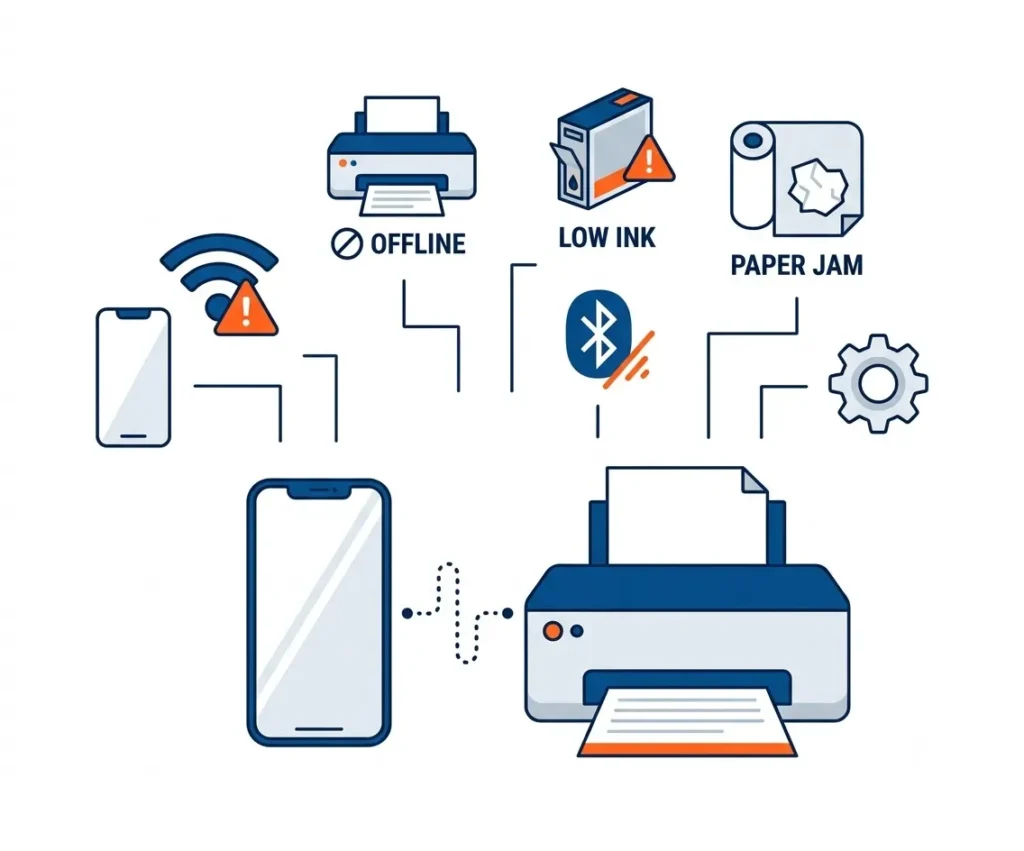
Common Mobile Printing Problems and How to Fix Them
Even with modern printers, occasional printing problems are bound to come up. The good news is that most of them have simple, quick solutions.
💡 Quick Tip: If your printer doesn’t appear immediately, wait 10–15 seconds after both devices connect to Wi-Fi before searching again. Many printers need a short moment to become discoverable on the network.
Phone Cannot Find the Printer
Possible Causes: different Wi-Fi networks, the printer being turned off, wireless connectivity disabled, or the printer sitting in sleep mode.
Solution: Make sure both devices use the same Wi-Fi network, wake the printer from sleep mode, restart your phone and printer, and try adding the printer again.
Printer Appears Offline
If your printer shows as offline, it simply means your phone can’t communicate with it at that moment.
Solution: Restart the printer, check the Wi-Fi connection, confirm it’s connected to the correct network, and install any available firmware updates.
AirPrint Is Not Working
Sometimes AirPrint has trouble detecting your printer.
Solution: Verify that your printer supports AirPrint, restart both devices, update your iPhone, update the printer firmware, and make sure both devices are on the same network.
Mopria Is Not Working
Android users may run into problems if Mopria isn’t installed or configured correctly. If your phone doesn’t already include a compatible print service, you may need to install Mopria Print Service from Google Play.
Solution: Install or update Mopria Print Service, restart the phone, restart the printer, and check your wireless connection.
Bluetooth Printing Fails
Bluetooth connections can occasionally drop or fail to pair correctly.
Solution: Remove the paired printer, pair the devices again, move closer to the printer, and turn Bluetooth off and back on.
USB OTG Does Not Work
Some Android phones simply don’t support USB OTG.
Solution: Confirm your phone supports USB OTG, use a compatible OTG adapter, check the USB cable, and allow USB permissions when prompted.
Poor Print Quality
Low-quality prints usually point to a printer maintenance issue rather than a connection problem.
Solution: Replace empty ink or toner cartridges, clean the print heads, use the correct paper type, and select a higher print quality setting.
Paper Size Is Incorrect
If your document prints incorrectly, the paper size selected on your phone may not match what’s actually loaded in the printer.
Solution: Check that both the printer and your phone are using the same paper size.
Print Queue Is Stuck
Sometimes print jobs sit in the queue without ever printing.
Solution: Cancel the stuck print job, restart the printer, restart your phone, and send the document again.
Quick Troubleshooting Checklist
Before contacting technical support, run through this checklist: printer is powered on, phone and printer are on the same Wi-Fi network, printer has paper, ink or toner levels are sufficient, Bluetooth is enabled if you’re using it, Wi-Fi Direct is enabled if needed, printer firmware is updated, phone software is updated, the correct printer is selected, and the print preview looks correct. A quick pass through this list resolves most mobile printing problems.
Mobile Printing Tips
Real-World Tips for Better Mobile Printing
These practical tips can help you avoid the most common printing headaches:
- Wait 10 to 15 seconds after your printer connects to Wi-Fi before searching for it on your phone, since some printers need a short time to become discoverable.
- If your printer doesn’t appear, restart both your phone and the printer before changing any network settings.
- Print a one-page test document before sending large files or multiple copies.
- Always review the print preview to avoid formatting issues or missing pages.
- Keep your printer firmware updated to improve compatibility with newer phones.
- If you’re using a shared office printer, confirm you’ve selected the correct one before printing confidential documents.
- Stay close to your Wi-Fi router during initial setup to reduce connection problems.
- If you regularly print from cloud storage, install your printer manufacturer’s app for a smoother experience.
Comparison of Mobile Printing Methods
| Method | Internet Required | Easy to Set Up | Best For |
| Wi-Fi | Yes | ⭐⭐⭐⭐⭐ | Everyday printing |
| AirPrint | Yes | ⭐⭐⭐⭐⭐ | iPhone and iPad |
| Mopria | Yes | ⭐⭐⭐⭐ | Android devices |
| Wi-Fi Direct | No | ⭐⭐⭐⭐ | Printing without a router |
| Bluetooth | No | ⭐⭐⭐ | Portable printers |
| USB OTG | No | ⭐⭐⭐ | Wired Android printing |
| Manufacturer Apps | Usually Yes | ⭐⭐⭐⭐ | Extra features and cloud printing |
This comparison makes it easier to choose the right printing method based on your device and your specific printing needs.
Which Printing Method Should You Choose?
Choosing the right mobile printing method really comes down to where and how you print. AirPrint is the best option for iPhone and iPad users because it’s built into iOS and requires very little setup. Mopria works well for many Android devices and supports thousands of compatible printers. Wi-Fi Direct is ideal when a wireless router isn’t available, while Bluetooth suits portable photo printers and travel-friendly devices best. Manufacturer apps, meanwhile, provide additional features such as cloud printing, scanning, printer maintenance, and ink monitoring.
For most home and office users, printing over the same Wi-Fi network still offers the fastest and most reliable experience overall.
Frequently Asked Questions
Can I Print Directly From My Phone?
Yes. Most smartphones let you print directly to a compatible wireless printer using Apple AirPrint on an iPhone, Mopria Print Service on Android, or your printer manufacturer’s mobile app.
Do My Phone and Printer Need to Be on the Same Wi-Fi Network?
In most cases, yes. Your phone and printer should be connected to the same Wi-Fi network for wireless printing to work properly. If they’re on different networks, your phone may not detect the printer, though you can also fall back on Wi-Fi Direct, Bluetooth, or USB OTG if your printer supports those features.
How do I add a printer to my phone?
You can add a printer to your phone by connecting both devices to the same Wi-Fi network, then opening the Print option on your phone, selecting your printer, and completing the setup.
Can I print from my phone to a wired printer?
Yes, some Android phones can print to wired printers using a USB OTG adapter, though both the phone and printer must support wired mobile printing.
Can I print from my phone using Bluetooth?
Yes, you can print using Bluetooth if your printer supports Bluetooth printing. This option is commonly used with portable photo printers.
Why does my printer say offline?
A printer may show as offline because of a lost Wi-Fi connection, outdated firmware, incorrect network settings, or simply being turned off. Restarting the printer, checking the network connection, and reconnecting usually resolves it.
Why is my printer not showing up on my phone?
Your printer may not appear if both devices aren’t connected to the same network, the printer is asleep, or mobile printing is disabled on the device.
Can I print from Google Drive?
Yes, you can print Google Drive files by opening the document, selecting the Print option, choosing your printer, and sending the file.
Can I print from Gmail?
Yes, Gmail allows users to print emails and attachments directly from the mobile app.
Can I print from my phone anywhere?
Yes, some printers support remote printing through manufacturer apps or email-to-print services, though availability depends on your specific printer model and setup.
Which Printers Support Mobile Printing?
Many modern wireless printers support mobile printing, with popular brands including HP, Canon, Epson, Brother, Xerox, Lexmark, and Kyocera. Before buying a printer, it’s worth checking whether it supports AirPrint, Mopria, or another mobile printing technology.
Is Mobile Printing Secure?
Yes, mobile printing is generally secure when you use a trusted network. For shared office environments, many business printers also support secure print release, a feature that holds the print job until you enter a PIN or authenticate at the printer, helping protect confidential documents. If you’re printing sensitive documents, it’s best to avoid public Wi-Fi whenever possible — use a trusted network, enable your printer’s security features, and collect printed documents promptly to protect personal or business information.
To improve security overall, connect to a private Wi-Fi network, keep your printer firmware updated, install software updates on your phone, avoid printing sensitive documents on public networks, and remove completed print jobs when using shared printers. Following these simple steps goes a long way toward protecting your personal and business information.
Choosing the Best Mobile Printing Method
There’s no single printing method that works best for everyone — the right choice depends on your phone, your printer, and where you happen to be printing from.
If you use an iPhone, AirPrint offers the simplest experience because it’s built directly into iOS. Android users can rely on the built-in Print Service or Mopria for quick wireless printing. If you’re away from a Wi-Fi network, Wi-Fi Direct or Bluetooth may serve you better. Manufacturer apps are ideal for anyone who wants additional features such as cloud printing, scanning, printer maintenance, and secure printing.
Choosing the right method helps you print documents, photos, emails, and other files quickly while cutting down on connection problems.
| Situation | Best Printing Method |
| Home printing | Wi-Fi |
| iPhone | AirPrint |
| Android | Mopria |
| No Wi-Fi router | Wi-Fi Direct |
| Portable printer | Bluetooth |
| Older printer | USB OTG |
| Need scanning | Manufacturer App |
| Cloud printing | Manufacturer App |
Conclusion
Printing from your phone is quick, convenient, and easier than ever before. Whether you use an iPhone or an Android phone, you can print photos, documents, emails, PDFs, and web pages in just a few taps.
For most people, connecting both devices to the same Wi-Fi network remains the fastest solution. If Wi-Fi isn’t available, you can still print using Wi-Fi Direct, Bluetooth, USB OTG, or your printer manufacturer’s mobile app.
If your phone can’t find your printer, don’t worry — a few simple checks, such as confirming both devices are on the same network, restarting them, and updating the printer firmware, solve most printing problems.
Now that you know how to print from your phone, you can choose the method that best fits your device and printer. With the right setup, mobile printing becomes a fast and reliable way to print from almost anywhere.