SSD Not Showing Up? How to Fix It Without Losing Your Data
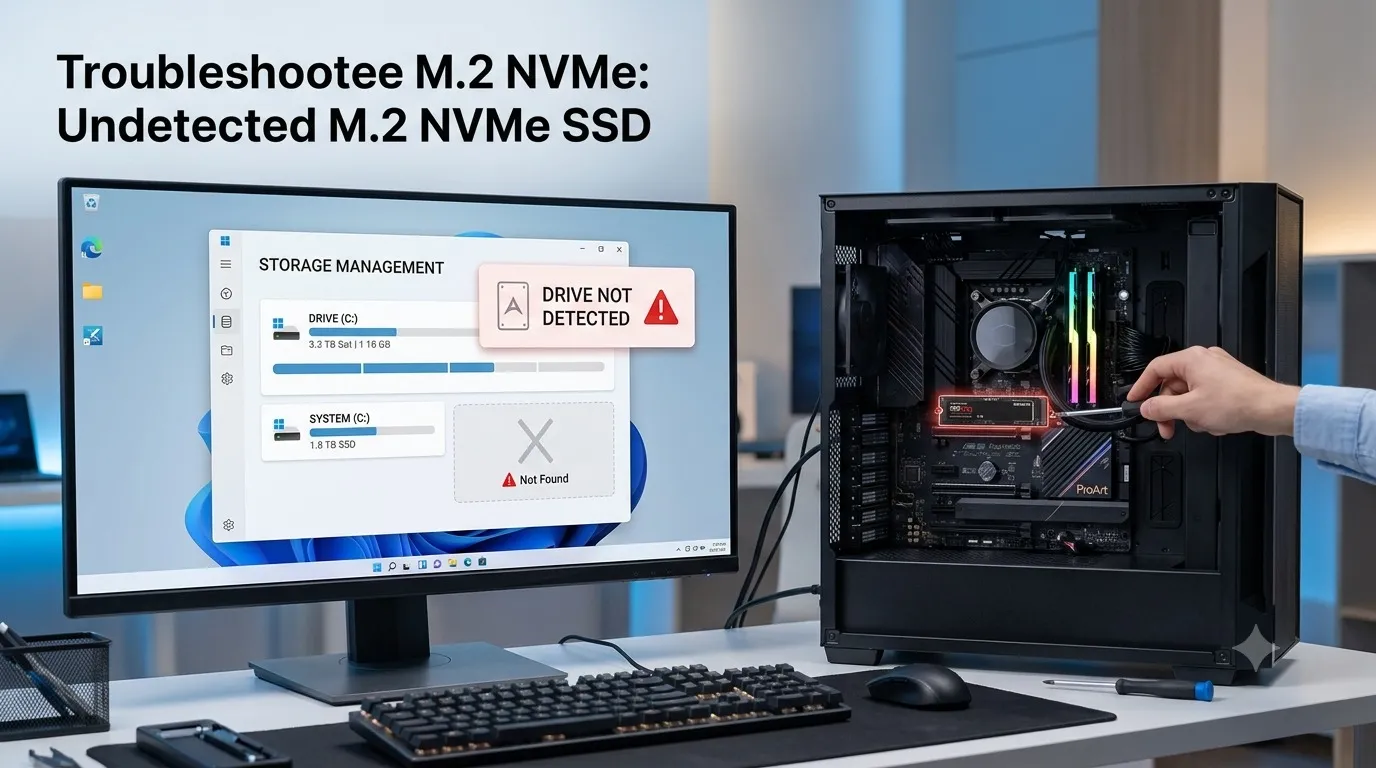
If your SSD is not showing up in Windows, try not to panic. This is a common issue, and in most cases it does not mean your SSD has failed. The cause is often something simple, such as a missing drive letter, a drive that still needs to be initialized, an offline or unallocated partition, or even just a loose cable. In some situations, the root cause is a driver, BIOS, or hardware problem instead.
The best first step is to figure out exactly where your SSD is going missing. It might not appear in File Explorer, even though it shows up fine in Disk Management. It could be missing from Device Manager entirely, or it might not even be detected in BIOS or UEFI. The right fix depends heavily on which of these situations matches what you’re seeing.
Important: If your SSD contains important files, avoid formatting or initializing it right away. Both actions can make data recovery much harder later on. Before doing anything else, check whether Windows or BIOS can still detect the drive at all.
| Where is the SSD missing? | Most likely issue | What to check first |
| File Explorer only | Missing drive letter or partition issue | Disk Management |
| Disk Management | Connection, driver, BIOS, or hardware issue | Device Manager and BIOS/UEFI |
| Device Manager | Driver or hardware detection issue | Storage controllers and BIOS/UEFI |
| BIOS/UEFI | Connection, compatibility, slot, or hardware issue | Physical installation |
| Windows Setup | Storage controller or driver issue | BIOS/UEFI and storage drivers |
| External SSD | USB cable, port, enclosure, or power issue | Cable, port, and another computer |
Why Is My SSD Not Showing Up?
There are several common reasons an SSD can fail to appear, and most of them are fixable once you know what to look for. The SSD may not be connected correctly, or a SATA cable could be loose or damaged. It might simply be missing a drive letter, sitting uninitialized, or showing up as unallocated space. In some cases the drive is marked offline, has an unsupported or corrupted file system, or is disabled somewhere in BIOS or UEFI.
Other possibilities include incorrect storage controller settings, a problematic SSD driver, or a compatibility mismatch with your motherboard. Power issues, overheating, and general wear or physical damage can also prevent detection. Before trying any fix, take a moment to consider whether the drive contains important data — that will shape which troubleshooting steps are safe to try.
If your computer is detecting the drive but downloads or cloud backups still feel unusually slow, it may be worth learning why your upload speed is so slow, as your internet connection could be the real bottleneck.
Is This a New SSD or One That Previously Worked?
The right troubleshooting path really depends on whether you’re dealing with a brand-new drive or one that used to work fine. Treating these two situations the same way is one of the most common mistakes people make, so it’s worth pausing here before moving forward.
If the SSD Is Brand New
A new SSD often fails to appear simply because it hasn’t been set up yet. It may not be connected correctly, may not have been initialized, or may still be sitting as unallocated space without a drive letter. It’s also possible the drive isn’t compatible with your motherboard, is installed in an unsupported M.2 slot, or isn’t being detected or enabled properly in BIOS or UEFI.
In most cases, a new and completely empty SSD just needs to be initialized, partitioned, and assigned a drive letter before Windows will show it.
| Situation | Recommended first step | What to avoid |
| Brand-new SSD with no data | UEFI and Disk Management | No major data risk if empty |
| Previously used SSD | UEFI and Disk Management | Formatting or initializing immediately |
| SSD suddenly disappeared | Check connections and BIOS/UEFI | Repeatedly restarting if the drive is failing |
| External SSD | Test cable, port, and another computer | Formatting before checking for data |
| SSD after cloning | UEFI and boot order | Erasing the original drive too soon |
| SSD showing RAW | Investigate data recovery first | Formatting immediately |
Which Situation Describes You?
I just installed a new SSD. Start by checking whether BIOS or UEFI detects the drive. If it shows up there but not in File Explorer, open Disk Management — a new SSD typically needs to be initialized, partitioned, and given a drive letter before it becomes usable.
My SSD was working before. Resist the urge to initialize or format the drive right away. Check BIOS or UEFI and Disk Management first. If the SSD suddenly disappeared, the cause could be anything from a loose connection to a driver problem, a partition issue, a firmware glitch, or genuine hardware failure.
I installed a second SSD. Check your motherboard manual before assuming something is broken. Some M.2 slots share resources with SATA ports, so installing a new M.2 SSD can quietly disable one or more of your existing SATA connections.
I am trying to install Windows. If the drive appears in BIOS but not in Windows Setup, the issue is likely related to storage controller settings or a missing storage driver. Check your computer or motherboard manufacturer’s instructions before changing anything in BIOS.
I am using an external SSD. Start simple — try a different USB port and cable. Then open Disk Management to see whether Windows is detecting the drive at all.
Working through this quick check first helps you choose the right troubleshooting path without making unnecessary or risky changes to the SSD.
If the SSD Was Working Before
A previously working SSD that suddenly disappears deserves a more cautious approach. Possible causes include a loose or damaged cable, a failed SATA port, a power delivery problem, or a corrupted partition. File system corruption, storage controller or driver issues, firmware problems, overheating, and outright hardware failure are all worth considering as well.
If the drive holds important data, do not rush to format or initialize it. Check first whether it’s detected in BIOS or UEFI, and whether it appears in Disk Management.
This distinction really matters. A brand-new, empty SSD can usually be set up safely through initialization and formatting. A drive that previously held your files deserves a much more careful, investigative approach — one where you understand why it disappeared before you touch anything that could overwrite data.
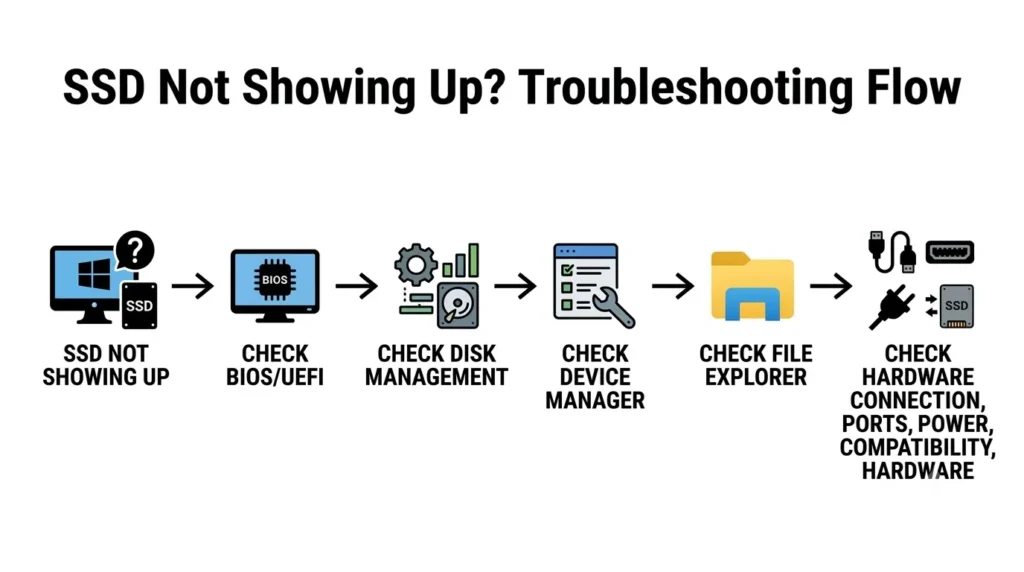
Quick Check: Where Is Your SSD Missing?
Before attempting any fix, it helps to pin down exactly where your SSD stops showing up. This narrows down the likely cause considerably.
| Where the SSD appears | What it may mean | What to check |
| File Explorer | Windows may not have assigned a drive letter | Check Disk Management |
| Disk Management | Windows detects the drive, but the volume may have a problem | Check the drive status, partition, and file system |
| Device Manager | Windows detects the hardware or storage controller | Check drivers and storage controllers |
| BIOS or UEFI | The motherboard detects the SSD | Check Windows, partitions, and storage settings |
| Nowhere, including BIOS | There may be a connection, compatibility, or hardware problem | Check installation, cables, power, and compatibility |
For example, if your SSD shows up in Disk Management but not File Explorer, it likely just needs a drive letter. If it appears in BIOS or UEFI but not in Disk Management, the next step is checking Windows storage drivers or controller settings. And if the SSD is missing from BIOS or UEFI altogether, start with the physical installation — cables, power, compatibility, and the M.2 slot.
Important: If the SSD contains important files, avoid formatting, initializing, or creating a new volume until you fully understand what happened.
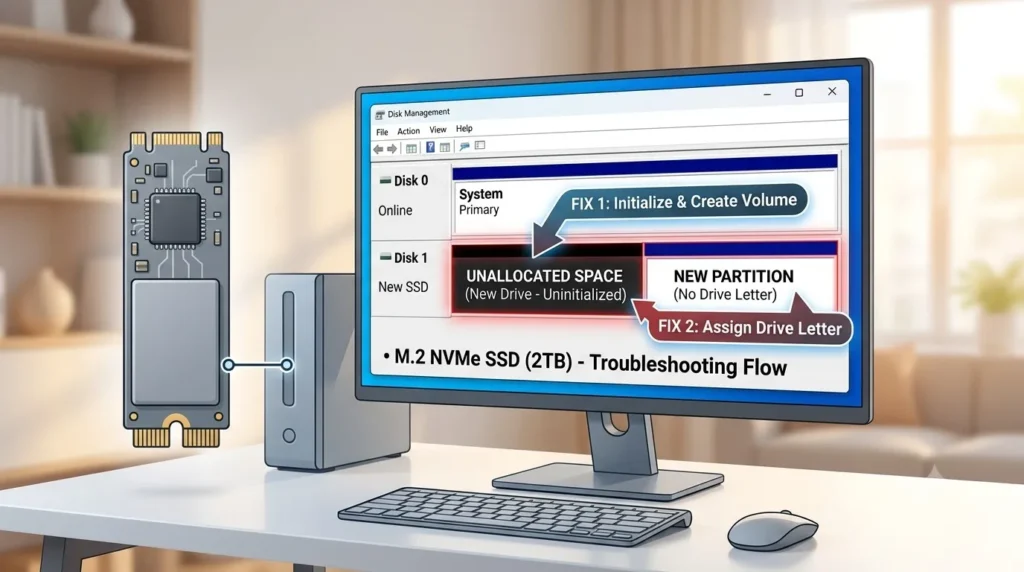
Why Disk Management Is the Best Place to Start
Windows Disk Management is one of the most useful built-in tools for diagnosing a missing SSD. It shows whether Windows can see the physical disk, and whether that disk has partitions or unallocated space. From there, you can initialize a new disk, create a new volume, and assign a drive letter.
That said, these actions are really intended for setting up a new or empty drive. If your SSD previously held important files, hold off on initializing, formatting, or creating a new volume until you understand why the data appears to be missing.
| SSD status | What it usually means | What to do |
| Unallocated | No usable volume is assigned | New SSD: create volume; old SSD: check for missing data first |
| Offline | Windows has taken the disk offline | Check why it is offline before bringing it online |
| No drive letter | Windows may detect the partition but File Explorer cannot access it normally | Check drive letter assignment |
| RAW | Windows cannot recognize the file system | Do not format if data is important |
| 0 bytes | Possible serious detection or hardware issue | Check connections and test another system |
| Not listed | Windows may not detect the physical drive | Check BIOS, connections, drivers, and hardware |
What If Windows Detects the SSD but You Cannot Use It?
Sometimes the SSD isn’t completely invisible — Windows detects the drive, but you still can’t open or use it normally. In these cases, the exact status shown in Disk Management gives you an important clue about what’s going on.
SSD has no drive letter. The partition itself may be perfectly healthy; Windows simply hasn’t assigned it a letter yet. You can usually fix this by assigning one manually through Disk Management.
SSD shows as Unallocated. If the drive is new and empty, you can safely create a new volume. But if it previously held files, stop before creating anything new — investigate the missing partition or data first instead.
SSD shows as RAW. A RAW file system usually means Windows can’t recognize the file system on that volume. If the drive holds important data, avoid formatting it right away and consider data recovery options first.
SSD shows 0 bytes. A 0-byte capacity reading often points to a serious detection or hardware problem. Check the physical connection and try a different, compatible port or system. If it keeps reporting 0 bytes, professional diagnosis may be worth considering when the data matters.
The key takeaway here is that “detected” doesn’t automatically mean “healthy and ready to use.” The specific status Windows reports should guide your next move.
Is the SSD Installed Correctly?
It’s worth starting with the physical connection, since a loose or faulty connection is one of the most common reasons Windows fails to detect an SSD in the first place.
For a SATA SSD
Check both cables carefully. A SATA SSD needs a data cable and a separate power cable, and both need to be firmly seated. It’s also worth checking the other end of the data cable to make sure it’s properly connected to the motherboard.
If you still have doubts, try swapping in a different SATA data cable, testing a different SATA port, or using a different power connector from the power supply. If the SSD starts working after any of these swaps, the drive itself is probably fine — the problem was the connection.
For an M.2 SSD
Always power off the computer before checking an M.2 drive. Confirm that it’s fully seated in the correct slot and secured with the right screw or bracket, since a loose fit can easily prevent detection.
It’s also worth checking your motherboard manual, since not every M.2 slot supports every type of M.2 SSD. M.2 can use either SATA or PCIe/NVMe technology, and while the physical shape often looks the same, the underlying connection type isn’t always compatible. If your motherboard doesn’t support your specific SSD type, the drive simply won’t be detected, no matter how well it’s installed.
Have You Initialized the Drive?
Windows documentation notes that a new disk may not immediately appear in File Explorer — it often needs to be initialized first, followed by creating a volume and assigning a drive letter. On modern UEFI-based computers, GPT is generally the standard partition style, while MBR is mainly reserved for older systems or specific compatibility needs.
A brand-new SSD that hasn’t appeared in File Explorer after installation is very often simply waiting to be initialized. To check, open Disk Management in Windows — you can search for “Create and format hard disk partitions” — and look for your SSD in the list of disks. If it’s listed but marked as Not Initialized, that’s your answer: Windows needs to initialize it before you can use it.
For a genuinely new, empty SSD, initializing the drive and choosing a partition style is generally safe. GPT is the standard choice for modern UEFI-based computers, while MBR is mainly relevant for older systems or specific compatibility requirements.
Important data warning: Do not initialize a drive if it contains important files and you’re unsure why it became uninitialized in the first place. Take time to check the drive’s condition and understand what happened before proceeding — initializing a drive that previously held your files can change its partition information and make recovery significantly harder.
Is Your SSD Listed as Unallocated Space?
If the SSD is brand new and empty, you can typically create a New Simple Volume directly from the unallocated space. Windows will let you choose the volume size, assign a drive letter, and format it. However, if the SSD previously contained files, don’t assume unallocated space automatically means your data is gone — creating a new volume or formatting that space can make recovery considerably more difficult.
Your SSD may show up in Disk Management with a large area marked as Unallocated. This usually just means Windows can see the physical drive, but there’s no usable volume present in that space yet.
If the drive is genuinely new and empty, right-click the unallocated space, select New Simple Volume, and follow the wizard to choose a size, assign a drive letter, and let Windows format it with a supported file system.
If the SSD already contains files, though, proceed with more caution. Don’t create a new volume without checking first — the missing partition may still contain your data, and creating a new volume or formatting the drive risks overwriting information you might need for recovery.
Does Your SSD Have a Drive Letter?
Microsoft’s Disk Management documentation confirms that you can assign or change a drive letter whenever a volume is accessible and ready to receive one. If the Change Drive Letter and Paths option is unavailable, it usually means the volume is unallocated, inaccessible, or otherwise not ready — and simply assigning a letter won’t solve the underlying problem in that case.
Sometimes Windows detects the SSD perfectly fine, but File Explorer just doesn’t show it because of a missing drive letter. To check, open Disk Management and locate the SSD. If it has a healthy partition but no letter assigned, right-click the partition, select Change Drive Letter and Paths, then choose Add or Change and pick an available letter.
Once that’s done, open File Explorer again and check whether the drive now appears. If your SSD shows up in Disk Management but not File Explorer, this is one of the very first things worth checking.
Is the SSD Offline?
Windows sometimes detects an SSD but marks its status as Offline, which will keep it from appearing in File Explorer. Open Disk Management and check the drive’s status to confirm this is what’s happening.
If the disk is offline and you’re confident the drive is safe to use, you may be able to bring it back online directly from Disk Management. That said, proceed carefully if the SSD holds important data — a drive that suddenly went offline on its own may be signaling an underlying problem worth investigating before you make any changes.
Does the SSD Have a File System Problem?
Windows relies on a recognizable file system — commonly NTFS or exFAT — to read data from a storage drive. If Windows shows your SSD as RAW, Unallocated, or with an unexpected file system, something has likely gone wrong.
Common causes include file system corruption, a damaged partition, an unsupported file system, a failed storage device, or a problem with the partition table itself.
It’s worth resisting the urge to format too quickly here. Formatting can absolutely fix a new, empty SSD with no data at stake. But formatting a drive that holds important files will remove your access to them, so if there’s data you need, stop and investigate first — you may need a data recovery process rather than a simple format.
Is the SSD Showing Up in Device Manager?
If your SSD isn’t appearing in Disk Management, the next place to check is Device Manager. Right-click the Start button, open Device Manager, and look under Disk drives and Storage controllers.
If the SSD shows up there, it means Windows is detecting the hardware itself but may be having trouble managing it properly. Try scanning for hardware changes, and check whether there’s a driver problem. A warning icon on a storage controller often points to a driver or controller configuration issue.
It’s best to avoid downloading random drivers from unfamiliar websites. If you do need a driver update, get it from the official support page of your computer, motherboard, or SSD manufacturer instead.
If Device Manager shows an error on a storage device or controller, check its status and driver details. Microsoft recommends using Device Manager itself to update or reinstall drivers when appropriate, and if the problem started right after a driver update, the built-in Roll Back Driver option can be a useful fix for supported devices. When downloading drivers manually, always stick to the manufacturer’s official website and make sure the driver actually matches your system.
What If the SSD Is Missing From BIOS or UEFI?
If your SSD doesn’t appear in BIOS or UEFI at all, Windows-level troubleshooting isn’t the right starting point. For an internal SATA SSD, check both the data cable and the power cable, and try swapping in another SATA cable or port if you can. For an M.2 SSD, carefully remove and reinstall the drive, and confirm the slot actually supports your SSD’s type and interface.
If the SSD still doesn’t show up in BIOS or UEFI after these checks, try testing it in another compatible computer, or try a known-good drive in the same slot on your current system. This comparison helps narrow down whether the issue lies with the SSD itself, the slot, or the motherboard.
If the drive isn’t detected by multiple compatible systems, it’s a strong sign the SSD itself has a hardware problem.
Is the SATA Storage Controller Mode Correct?
Some computers use storage controller modes such as AHCI, RAID, or Intel VMD, and these settings can directly affect whether Windows detects a storage device at all. This becomes especially relevant when a new SSD is missing, when Windows can’t find an SSD during installation, or when an NVMe drive shows up in BIOS but not in Windows Setup.
Before touching any of these settings, check your computer or motherboard documentation. Switching between AHCI, RAID, and VMD at random is risky — the correct setting depends heavily on your specific hardware and how Windows was originally installed.
Did Installing a Second SSD Make Another Drive Disappear?
It’s more common than you might expect for installing a new SSD to cause another drive to vanish, particularly on desktop motherboards with multiple M.2 slots. Some M.2 slots share PCIe or SATA resources with other storage ports, so adding an M.2 SSD can cause the motherboard to disable one or more SATA ports automatically.
For example, you might install a new M.2 SSD and then notice that an older SATA SSD is no longer visible at all. If this happens, check your motherboard manual for details on M.2 slot sharing, SATA port restrictions, PCIe lane sharing, and any SATA ports that get disabled under certain configurations. It’s also worth trying to connect the SATA SSD to a different SATA port. Importantly, this kind of conflict doesn’t necessarily mean either drive has actually failed.
Not every SSD is compatible with every computer, and this is especially true for M.2 drives. An M.2 slot might support M.2 SATA SSDs, M.2 NVMe SSDs, or both — so it’s worth checking your motherboard or laptop manual, along with whether that slot shares resources with other ports. Some motherboards disable certain SATA ports depending on which M.2 slot is in use, which can create a genuinely confusing situation where installing a new M.2 SSD makes an older SATA drive disappear. The motherboard manual is the best place to clarify exactly which ports are affected.
Could the SSD Have a Power Problem?
Every storage device needs stable, consistent power to function correctly. For SATA SSDs, double-check the power connection itself. For external SSDs, try a different USB port, and avoid using a USB hub while testing — connecting directly to the computer removes one more variable from the equation. If your external SSD uses a removable cable, it’s also worth trying a different one.
If the external SSD works fine on another computer, the issue is likely related to your original computer, USB port, cable, or driver rather than the drive itself.
Could the SSD Be Overheating?
High temperatures can affect both the performance and stability of an SSD, and this becomes more noticeable during heavy workloads. An overheating SSD might slow down, disconnect unexpectedly, or become generally unstable.
If your SSD is running very hot, check its cooling setup. For an M.2 SSD, confirm that any heatsink provided by your motherboard is installed correctly. SSD health tools can also help you monitor temperature and overall drive health — though it’s worth remembering that temperature alone isn’t definitive proof that a drive has failed.
Could the SSD Be Worn Out or Damaged?
SSDs absolutely can fail. Even though they have no moving parts, their flash memory, controller, or firmware can still develop problems over time, and older drives can become unreliable after heavy use.
Signs of a failing SSD include random disappearance, inconsistent detection, incorrect reported capacity, a 0-byte reading, extreme slowness, Windows-reported errors, being missing from BIOS, or general inaccessibility. If the drive holds important data, avoid testing it repeatedly — repeated power cycles and write operations rarely help a failing drive and can sometimes make things worse. If it’s still detected, prioritize copying your important files right away. If it’s not detected at all, professional data recovery may be the better path forward.
What If the SSD Suddenly Disappeared?
A sudden disappearance is a different situation from a brand-new SSD that has never worked. If the drive was functioning normally before, it helps to think back on what changed recently — did you update Windows, update BIOS, install new hardware, move the computer, lose power, change storage settings, update a driver, or notice unusually high temperatures?
The best approach is to check the SSD in BIOS or UEFI first, then Disk Management, then Device Manager. Working through these in order helps you pinpoint exactly where the detection process breaks down. If the SSD is missing from BIOS, focus on hardware, compatibility, power, and firmware. If BIOS detects it but Windows doesn’t, shift your attention to Windows storage settings, drivers, partitions, and file systems instead.
What If the SSD Keeps Disappearing and Reappearing?
An SSD that repeatedly appears and disappears often points to a different category of problem than one that was simply never detected in the first place. Common culprits include loose or damaged SATA cables, a faulty USB cable or enclosure on external drives, a problematic SATA or USB port, overheating, power delivery issues, firmware or controller problems, or an SSD that’s beginning to fail.
If the drive becomes visible again, back up your important data immediately rather than waiting for it to disappear for good. If it’s being detected intermittently and holds files you care about, prioritize copying the most important data first and try to limit unnecessary writes to the drive in the meantime.
Did the SSD Stop Showing Up After a Windows or BIOS Update?
If your SSD worked fine before a recent update, it’s worth thinking through what actually changed. Likely culprits include a Windows update, a BIOS or UEFI update, a storage controller driver update, a chipset driver change, or a modification to storage settings.
Start by checking whether the SSD is still visible in BIOS or UEFI. If it is, but it’s missing in Windows, move on to Device Manager and Disk Management. It’s also worth checking your computer, motherboard, or SSD manufacturer’s support page for updated storage controller, chipset, or firmware information.
Avoid randomly changing BIOS storage settings — switching AHCI, RAID, or VMD modes can prevent Windows from booting if the system was originally configured for a different storage mode. If the problem began immediately after an update, that timing is a useful clue worth keeping in mind while you troubleshoot.
What If Your SSD Is External?
For an external SSD, start with the basics: disconnect it, reconnect it directly to the computer, and try a different USB port and cable. From there, check both Disk Management and Device Manager to see how Windows is (or isn’t) recognizing the drive.
If possible, test the SSD on another computer entirely. If it appears there, the drive itself is likely healthy, and the issue lies with the original USB port, cable, driver, or computer. If it doesn’t appear anywhere at all, the SSD or its enclosure may genuinely have a problem.
What If the SSD Does Not Show Up During Windows Installation?
It’s fairly common for an SSD to be visible in BIOS but absent during Windows installation, particularly with certain storage controller configurations such as Intel VMD or Intel RST. In these cases, the Windows installer often needs a specific storage controller driver before it can see the drive at all.
Check your laptop or motherboard manufacturer’s support page for the correct storage driver, and review your BIOS or UEFI storage configuration as well. Avoid changing storage modes without following manufacturer guidance — if Windows is already installed and working, altering these settings can prevent the system from booting.
On some systems, storage controller settings genuinely determine whether Windows Setup can detect an SSD at all. Intel, for instance, documents cases where a drive connected through an Intel VMD-enabled platform requires the correct Intel Rapid Storage Technology (RST) driver during OS installation. If your system uses VMD or a similar configuration, check your manufacturer’s instructions and make sure you’re using the correct driver for that setup.
What If the SSD Is Not Showing Up After Cloning?
Troubleshooting after a cloning operation looks a little different. Start by checking whether the new SSD appears in BIOS or UEFI. If it doesn’t, focus on the physical installation and compatibility first.
When you’ve replaced an old drive with a cloned SSD, there are really two separate problems to consider: whether the drive is detected at all, and whether the computer boots from it. If BIOS doesn’t detect the new SSD, troubleshoot the physical connection, M.2 slot, compatibility, or storage controller. If BIOS detects it but the computer won’t boot from it, check the boot order and confirm the cloning process actually copied the required system and boot partitions.
It’s worth keeping your original drive untouched until you’ve fully confirmed the new SSD boots correctly and all your important files are present and accessible. If BIOS detects the SSD but Windows doesn’t, open Disk Management to check whether the drive is visible there.
After cloning, it’s also worth verifying that the process completed successfully, that the cloned partitions are present, that the SSD has a drive letter, and that the computer is actually booting from the correct drive in the BIOS or UEFI boot order. If your goal is booting Windows from the new SSD, make sure it’s properly selected as the boot device — and don’t erase the old drive until you’re fully confident the new one is working as expected.
What If the SSD Shows 0 Bytes?
An SSD reporting 0 bytes or an unusual capacity needs extra attention, since this is quite different from a normal unallocated drive. A new SSD with unallocated space will still show its correct total capacity, so a 0-byte reading instead points to a more serious problem with the controller, firmware, or hardware itself.
Check whether the drive is detected in BIOS, and if it holds important data, avoid formatting it. If the drive isn’t being detected correctly at the hardware level, professional help may be necessary to recover anything from it.
Check the SSD Firmware for Advanced Problems
If your SSD is detected but behaving strangely, it’s worth checking whether the manufacturer offers a firmware update, since firmware can affect compatibility, stability, and overall performance. Before updating, back up your important data, confirm the exact SSD model, and read through the manufacturer’s instructions and firmware release notes carefully. Never interrupt the update process once it starts.
That said, firmware updates aren’t the first thing to try when a drive is missing — start with the more basic checks first. If the SSD isn’t detected at all, a firmware update likely won’t even be possible through normal software, so it’s better to focus on hardware detection and data recovery options instead.
Can You Use DiskPart to Check the SSD?
Advanced users can turn to DiskPart to check whether Windows can see a physical disk at the command line. Open Command Prompt or Windows Terminal as an administrator, then run:
diskpart
list disk
The list disk command shows all the physical disks Windows currently detects. You can also run list volume and list partition to get a clearer picture of how Windows is interpreting the drive’s structure.
Be Extremely Careful With DiskPart
DiskPart works directly with your storage devices, and selecting the wrong disk can lead to permanent data loss. Commands like clean, delete, and various formatting commands can remove partitions or make existing data significantly harder to recover. If the SSD holds important files, avoid destructive DiskPart commands while you’re still trying to diagnose the detection problem — and if you’re ever unsure which disk you’re working with, stop and verify the disk number and capacity before running anything that changes the drive.
Be very careful: Do not use commands such as clean, delete, or any formatting command unless you’re certain about which disk you’ve selected. These commands can remove data permanently, so if your priority is recovering important files, stop before making any destructive changes.
How to Recover Data From a Non-Functional SSD
If your SSD holds important files, protecting that data should be your first priority — well before worrying about getting the drive fully working again. Avoid formatting the SSD, initializing it, creating a new volume, deleting partitions, or running destructive DiskPart commands until you understand the situation better.
Start by determining whether the SSD is detected at all — check BIOS or UEFI first, then Disk Management. If Windows can still detect the SSD in some form, your chances of accessing or recovering the data are generally better. If the SSD is completely missing from BIOS and from other computers as well, the problem is more likely hardware-related.
It’s worth noting that SSD data recovery can be genuinely difficult. Unlike traditional hard drives, SSDs rely on flash memory and features like TRIM, which means deleted data isn’t always recoverable the way it might be on a mechanical drive. If the files are important enough, the safest move is to stop using the drive entirely and consider a professional data recovery service.
How to Check Your SSD Health
If your SSD is still being detected, checking its health can help you understand what’s actually going on. Many manufacturers offer their own SSD utility software, which can show details like drive health, temperature, firmware version, capacity, performance, and SMART information. Some of these tools also include firmware update and secure erase features — though secure erase should be used with real caution, since it permanently removes data.
A health check can go a long way toward understanding whether your SSD is behaving normally. That said, a good health reading isn’t an absolute guarantee that the drive won’t fail down the line.
Final Thoughts
An SSD that isn’t showing up doesn’t automatically mean the drive is dead. Often the problem is as simple as a missing drive letter or an uninitialized new SSD — though it can also be caused by a loose cable, an incorrect BIOS setting, a driver problem, or a compatibility issue.
The safest approach is to work through the situation step by step. Check whether the SSD appears in BIOS or UEFI, then move on to Device Manager and Disk Management, and identify the drive’s exact status along the way. Is it unallocated? Is it offline? Does it have a drive letter? Is it reporting the correct capacity?
If the SSD contains important data, protect your files before making any changes, and avoid formatting or initializing the drive simply because it isn’t showing up. By carefully narrowing down exactly where the SSD disappears in the detection chain, you can identify the real cause and choose the safest possible solution.
Frequently Asked Questions
Why is my SSD showing in BIOS but not Windows?
If BIOS detects the SSD but Windows does not, the problem may be related to Disk Management, storage drivers, partitions, file systems, or storage controller settings.
Why is my SSD not showing in Disk Management?
Check whether the SSD appears in BIOS or Device Manager. If it does not appear anywhere, check the physical connection, compatibility, power, and possible hardware failure.
Why is my new SSD not showing up?
A new SSD may need to be initialized, partitioned, and assigned a drive letter. However, first make sure that Windows and BIOS can detect the physical drive.
Why is my NVMe SSD not showing up?
Check whether your motherboard supports NVMe SSDs. Make sure the SSD is installed correctly and that the M.2 slot supports PCIe/NVMe drives.
Why is my M.2 SSD not detected? M.2 is a physical form factor, not a storage protocol. Your M.2 slot may not support the type of M.2 SSD you installed. Check your motherboard or laptop manual.
Why is my SSD showing as unallocated?
Windows can detect the SSD, but the drive does not have a usable volume in that space. If it is a new, empty SSD, you can create a new volume. If it contains important data, do not format or create a new volume before checking for data recovery options.
Why does Windows ask me to format my SSD?
Windows may ask you to format a drive when it cannot read the file system. If the SSD contains important files, do not format it immediately. The file system or partition may be damaged.
Why did my SSD suddenly disappear?
A sudden disappearance can be caused by a loose connection, power problem, driver issue, overheating, firmware problem, or SSD failure. Check BIOS, Disk Management, and Device Manager to find where the drive is no longer detected.
Can an SSD be repaired if it is not detected?
Sometimes the problem can be fixed if it is caused by a cable, port, driver, BIOS setting, or partition issue. If the SSD is not detected by BIOS or any other computer, it may have a hardware or controller failure.
Should I initialize an SSD that is not showing up?
Only initialize a brand-new SSD that is empty and does not contain data you need. If the SSD contains important files, do not initialize it until you have investigated the problem and considered data recovery.
How do I fix an SSD that is not showing up without losing data?
Start by checking the physical connection and BIOS detection. Then check Device Manager and Disk Management. Avoid formatting, initializing, or deleting partitions if the SSD contains important data. If the drive is failing, stop using it and consider professional data recovery.