Inaccessible Boot Device: Causes, Symptoms, and Easy Fixes for Windows 10 & 11
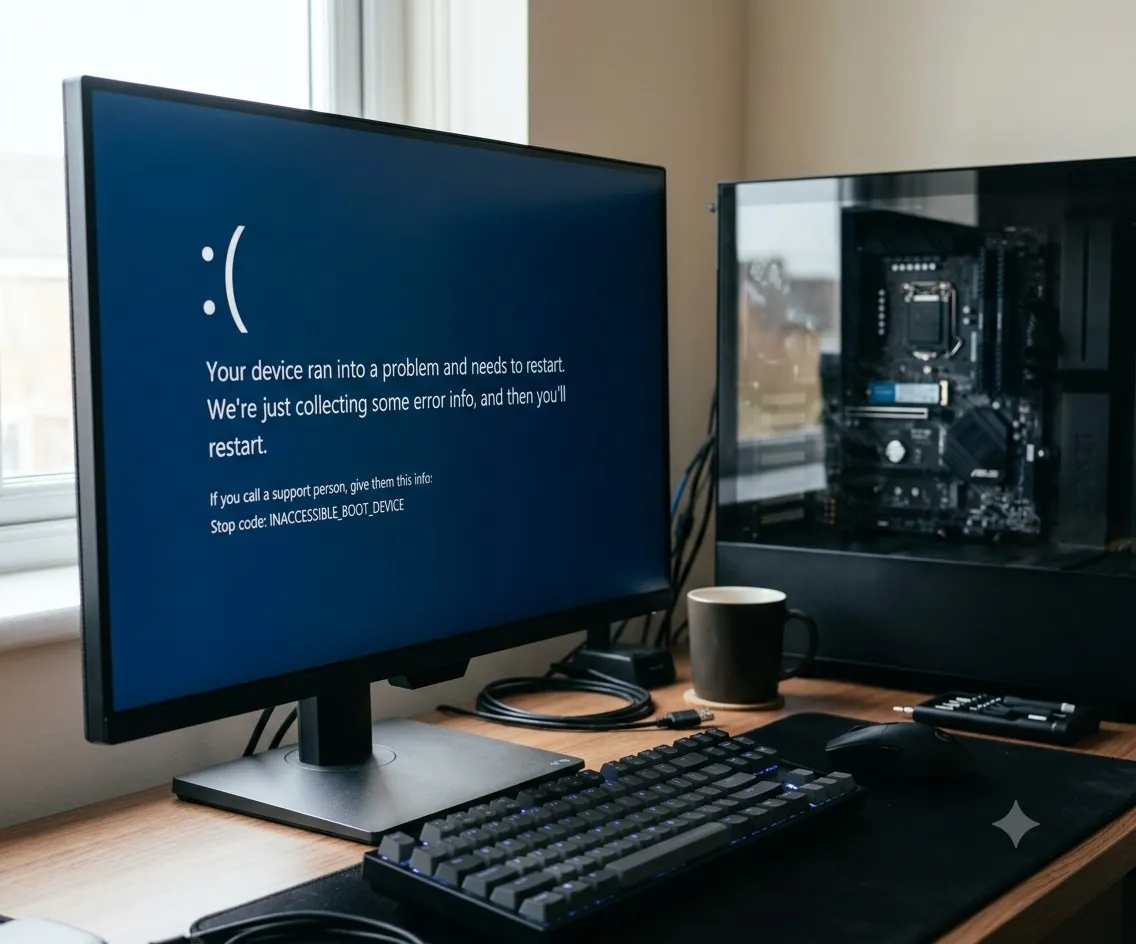
Seeing the Inaccessible Boot Device error can be genuinely frustrating, especially when your computer suddenly shows a blue screen instead of loading Windows as usual. In most cases, this error appears without warning, cutting off the startup process and leaving you locked out of your own system.
The good news is that the problem is often fixable. This guide walks you through what the Inaccessible Boot Device error means, why it happens, and how to fix it step by step. You will also learn when it is safe to repair Windows directly and when you should prioritize recovering your files first. Whether you’re running Windows 10 or Windows 11, these methods can help you get your computer working again.
What Is Stop Code 0x7B?
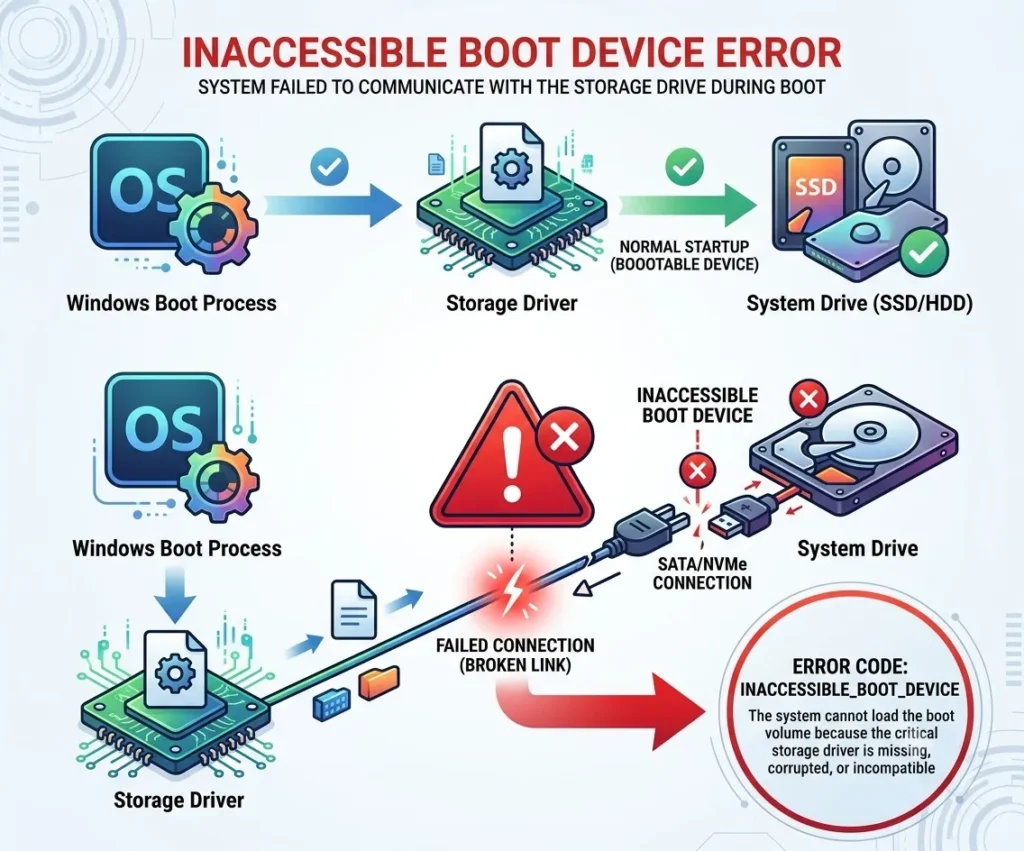
The Inaccessible Boot Device error is also known as Stop Code 0x0000007B or Stop Error 7B. It’s a type of Blue Screen of Death (BSOD) that appears when Windows is unable to access the system drive during startup.
During the boot process, Windows needs to communicate with the storage device that holds the operating system. When Windows can’t reach that drive, it halts the startup process entirely, largely as a safeguard to prevent further damage to your data or system files.
This error commonly appears after:
- Windows updates
- Driver changes
- BIOS or UEFI setting changes
- Hardware upgrades
- Storage device problems
The exact cause tends to vary from one computer to the next, which is why troubleshooting should always begin with identifying recent changes and checking the health of the boot drive before moving to more advanced repairs.
The INACCESSIBLE_BOOT_DEVICE error carries the bug check value 0x0000007B. According to Microsoft, this error occurs when Windows loses access to the system partition during startup. It can stem from storage driver problems, file system corruption, changes to storage controller settings, moving Windows to different hardware, or issues with the storage device itself.
Common Inaccessible Boot Device Error Codes
Although most users see the INACCESSIBLE_BOOT_DEVICE message, Windows may display different related codes depending on the cause.
| Error Code | Meaning |
| 0x0000007B | Windows cannot access the system drive during startup |
| INACCESSIBLE_BOOT_DEVICE | Storage communication failure |
| Automatic Repair Loop | Windows cannot complete startup recovery |
| Boot Device Not Found | BIOS cannot detect the boot drive |
The 0x0000007B stop code is the most common version of this problem and usually points to storage drivers, boot configuration issues, or hardware communication problems.
Symptoms of Inaccessible Boot Device Error
The Inaccessible Boot Device error doesn’t always look the same, since it can present differently depending on what’s triggering it. That said, there are a handful of symptoms that show up consistently across most cases:
- A blue screen showing the INACCESSIBLE_BOOT_DEVICE stop code
- Windows restarting repeatedly during startup
- Automatic Repair failing to fix the problem
- Windows getting stuck in a boot loop
- A missing boot drive in BIOS or UEFI
- Windows failing to load after an update
- The computer freezing before reaching the login screen
Taken together, these symptoms usually point to a breakdown in communication between Windows and the storage device, or damage to the files Windows relies on to start up correctly.
Quick Diagnosis Checklist Before Fixing Inaccessible Boot Device
Before trying advanced repairs, identify what changed before the error appeared. This helps you choose the right solution and avoid unnecessary fixes.
| Question | What It May Indicate |
| Did the error appear after a Windows update? | Possible update or driver corruption |
| Did you change BIOS settings? | AHCI, RAID, or boot mode mismatch |
| Did you install a new SSD? | Missing boot files or drivers |
| Does the drive appear in BIOS? | Hardware connection or drive health issue |
| Do you hear clicking sounds? | Possible HDD failure |
| Did Windows crash during an update? | Damaged system files or BCD |
If you know what happened before the error appeared, start with that specific fix instead of trying random repair commands. The same approach applies to other Windows hardware issues. For example, our guide on why is my printer offline shows how identifying recent changes can help resolve device connection problems more quickly.
What Causes an Inaccessible Boot Device Error?
At its core, the Inaccessible Boot Device error shows up when Windows can’t access the drive containing the operating system. During startup, Windows needs to read a series of critical boot files before your desktop ever loads. If access to the boot drive is lost at any point in that process, startup stops cold and you’re met with a Blue Screen of Death displaying the INACCESSIBLE_BOOT_DEVICE stop code.
Several different issues can trigger this error, and pinpointing the right one makes it much easier to choose an effective solution rather than guessing your way through repairs.
Microsoft explains that common causes of the Inaccessible Boot Device stop error include missing or corrupted storage drivers, file system corruption, changes to BIOS storage controller settings, using a different storage controller than the one present during the original Windows installation, hardware problems, and damaged boot partition files.
Damaged or Failing Hard Drive or SSD
A failing storage device is, by far, one of the most common reasons behind this error. Both traditional hard disk drives (HDDs) and solid-state drives (SSDs) can degrade over time, and the symptoms are usually noticeable before a full failure occurs.
Common signs include:
- Clicking or grinding sounds from an HDD
- Very slow startup
- Frequent freezing
- The drive disappearing from BIOS
- SMART health warnings
If your drive is showing these symptoms, software repair tools likely won’t solve the underlying problem. In this situation, recovering your important files should take priority over anything else.
Corrupted Windows System Files
Windows depends on hundreds of individual system files just to get through startup. When these files become damaged, whether from an unexpected shutdown, malware, or disk corruption, Windows can fail to boot properly.
Corrupted files can specifically prevent Windows from loading storage drivers or boot components, which is exactly the kind of breakdown that results in the Inaccessible Boot Device stop code.
Interrupted Windows Update
Many users encounter this error for the first time right after installing a Windows update. If that update fails or gets corrupted partway through installation, Windows may lose recognition of the storage controller or the boot configuration altogether.
This tends to happen when:
- The computer shuts down during an update.
- A cumulative update fails.
- A driver update replaces the correct storage driver with an incompatible one.
If the problem started immediately after an update, uninstalling the latest update through the Windows Recovery Environment (WinRE) is often enough to resolve it.
Faulty Storage Controller Drivers
Windows relies on storage controller drivers to communicate with your SSD or HDD. When these drivers become corrupted, outdated, or simply incompatible, Windows loses the ability to access the boot partition during startup.
This often happens after:
- Installing new chipset drivers
- Updating storage controller drivers
- Cloning Windows to another SSD
- Migrating from SATA to NVMe storage
Updating or restoring the correct driver usually resolves the issue without further intervention.
Intel RST and VMD Driver Problems
Many modern laptops rely on Intel Rapid Storage Technology (RST) or Intel Volume Management Device (VMD) controllers to manage their storage devices.
Storage controller compatibility plays a major role here. Microsoft notes that changing storage controller modes, or using a different storage controller from the one active during Windows installation, can cause the system to lose access to the boot device entirely.
If these settings change in BIOS, or if the required driver becomes unavailable, Windows may lose its connection to the boot drive. This commonly happens after:
- BIOS updates
- Windows reinstallations
- SSD replacements
- Switching between RAID and AHCI modes
Installing the correct Intel RST or storage controller driver typically restores communication between Windows and the boot device.
Inaccessible Boot Device on Windows 11
Windows 11 computers can experience the Inaccessible Boot Device error due to newer storage technologies and security requirements.
Common Windows 11-specific causes include:
- Intel VMD controller changes
- NVMe driver problems
- BIOS updates changing storage settings
- Secure Boot configuration changes
- Motherboard firmware updates
Many modern laptops use Intel VMD or RAID storage modes by default. If Windows was installed with these settings enabled and they are later disabled in BIOS, Windows may lose access to the boot drive.
Before changing BIOS settings on Windows 11, check your original storage configuration and avoid switching between RAID, AHCI, and VMD unless you understand the impact.
Damaged Boot Configuration Data (BCD)
The Boot Configuration Data (BCD) is essentially the map Windows uses to find out where the operating system is installed and how to load it. If the BCD becomes corrupted, Windows won’t be able to locate the boot files, even if the operating system itself is still fully intact on the drive.
This may happen after:
- Power failures
- Disk errors
- Malware infections
- Failed Windows updates
- Improper disk cloning
Rebuilding the BCD is usually enough to restore normal startup behavior.
Loose or Defective SATA Cables
Desktop computers rely on SATA data and power cables to keep storage drives connected. A loose cable or a damaged connector can interrupt communication between the motherboard and the drive at any moment, including during startup.
Before attempting any advanced software repairs, it’s worth confirming that:
- SATA cables are securely connected.
- Power cables are firmly attached.
- The drive appears in BIOS or UEFI.
Replacing a faulty cable is often a much quicker fix than reinstalling Windows from scratch.
Recent Hardware Changes
Installing new hardware can sometimes trigger the Inaccessible Boot Device error, particularly when the new components require different drivers than what Windows currently has installed. Common examples include:
- Replacing the motherboard
- Installing a new SSD
- Moving Windows to another drive
- Adding a RAID controller
Each of these changes may require different storage drivers before Windows is able to boot successfully again.
Inaccessible Boot Device After SSD Upgrade or Cloning
Many users run into the Inaccessible Boot Device error right after replacing an old hard drive with a new SSD, or after moving Windows over to another drive entirely. In most of these cases, the problem comes down to Windows being unable to find the correct boot files or storage drivers on the new drive.
Common causes include:
- Missing EFI System Partition
- Incorrect GPT or MBR configuration
- Damaged Boot Configuration Data (BCD)
- Missing NVMe or storage controller drivers
- Incorrect BIOS boot settings
To fix this issue:
- Confirm the new SSD appears in BIOS or UEFI.
- Make sure the correct drive is selected as the boot device.
- Check whether the disk uses GPT or MBR.
- Repair boot files using BCDBOOT.
- Install the correct storage controller drivers if needed.
Virus or Malware Infection
Although it’s less common than the other causes on this list, some malware specifically targets Windows boot files and system partitions. A damaged boot sector or a modified boot configuration can prevent Windows from accessing the operating system altogether.
Running a trusted antivirus scan once your system is back up and running helps guard against this happening again.
Quick Summary of Common Causes
| Cause | What Happens |
| Failing HDD or SSD | Windows cannot read the boot drive. |
| Corrupted system files | Essential startup files become damaged. |
| Windows update failure | Boot drivers or startup files become corrupted. |
| BIOS or UEFI changes | Windows cannot communicate with the storage controller. |
| Faulty storage drivers | Windows loses access to the boot partition. |
| Damaged Boot Configuration Data | Windows cannot find the operating system. |
| Loose SATA cable | Storage drive disconnects during startup. |
| Hardware replacement | Windows detects different storage hardware. |
| Malware | Boot files become damaged or modified. |
Understanding the underlying cause helps you avoid unnecessary repairs and, more importantly, choose the solution that’s actually going to work for your situation.
Restart the Computer
Restarting your computer may seem like an overly simple first step, but it genuinely does fix a surprising number of temporary software or driver issues on its own.
Sometimes Windows fails to load correctly simply because a driver didn’t initialize properly during startup. A fresh reboot gives Windows another chance to load everything it needs from scratch.
Before restarting, it’s worth taking a moment to:
- Remove all USB flash drives.
- Disconnect external hard drives.
- Remove memory cards.
- Unplug unnecessary accessories.
These devices can occasionally confuse the boot process, especially if the BIOS mistakenly tries to start from the wrong device. Once everything is disconnected, restart your computer and see what happens.
If Windows starts normally, reconnect each device one at a time so you can identify which one, if any, was actually causing the problem. If the Inaccessible Boot Device error appears again regardless, move on to the next troubleshooting step.
Check Recent Changes
Think back to what changed right before the Inaccessible Boot Device error first appeared, since the answer often points directly to the root cause. Ask yourself a few questions:
- Did Windows install an update?
- Did you replace your SSD or HDD?
- Did you install new drivers?
- Did you update the BIOS?
- Did you clone Windows to another drive?
- Did you add new hardware?
If you answered yes to any of these, undoing that specific change is often all it takes to solve the problem.
If the Problem Started After a Windows Update
Windows updates occasionally install incompatible storage drivers or damage startup files in the process. You can use the Windows Recovery Environment (WinRE) to remove the latest quality or feature update. After uninstalling it, restart your computer and check whether Windows loads normally again.
If You Recently Installed New Drivers
Storage controller drivers are essential to a clean startup. If you recently updated any of the following:
- Intel Rapid Storage Technology (RST)
- SATA controller drivers
- NVMe drivers
- Chipset drivers
the new driver may simply be incompatible with your specific hardware setup. Rolling back to the previous driver version often restores normal boot behavior right away.
If You Cloned Your SSD
Disk cloning usually goes smoothly, but missing boot files or incorrect partition settings can still prevent Windows from starting afterward. This problem tends to show up more often when:
- The EFI System Partition is missing.
- The Boot Configuration Data is damaged.
- The cloned drive uses a different partition style than the original.
Repairing the boot files typically fixes cloned drives without requiring a full Windows reinstall.
If You Changed BIOS Settings
Changing storage modes from AHCI to RAID or IDE can trigger the Inaccessible Boot Device error almost immediately. If you recently modified BIOS settings, restore the previous configuration and save the changes before restarting your computer again.
If You Installed New Hardware
Replacing a motherboard or adding a storage controller changes how Windows communicates with your boot drive, and older storage drivers may simply no longer be compatible with the new hardware. If the error started right after a hardware upgrade, check that:
- The boot drive is detected.
- The correct storage mode is selected.
- All cables are connected securely.
If everything checks out and the error persists, move on to the next troubleshooting method.
Check the BIOS or UEFI Settings
The BIOS or UEFI controls how your computer starts up and communicates with its hardware. When these settings change, Windows may lose the ability to detect the boot drive correctly, which is exactly when the Inaccessible Boot Device error tends to appear.
Before making any changes here, take note of your current BIOS or UEFI settings first, since changing the wrong option can end up creating additional startup problems on top of the one you’re already dealing with.
Make Sure the Boot Drive Is Detected
Start by opening the BIOS or UEFI setup and checking whether your SSD or HDD appears in the storage list. If the drive is missing, try the following:
- Turn off the computer.
- Check the SATA or power cables on desktop computers.
- Reseat the NVMe SSD if your computer uses one.
- Listen for unusual noises from an HDD, such as clicking or grinding.
If the drive still doesn’t appear after these steps, it may indicate an underlying hardware problem.
Check the Boot Order
The boot order determines which device your computer tries to start from first. Make sure the drive containing Windows sits at the top of that list. If another device, such as a USB drive or external hard drive, is set to boot first instead, the system may fail to load Windows at all. After saving your changes, restart the computer and check whether the error disappears.
Verify the Storage Mode
Windows installs its storage driver based on whichever controller mode was selected during the original installation. Common storage modes include:
- AHCI
- RAID
- IDE (Legacy systems)
If this setting changes later on, Windows may no longer recognize the boot drive. For example, if Windows was originally installed using AHCI and the BIOS now uses RAID instead, the operating system may stop with the Inaccessible Boot Device error. If the problem started after changing BIOS settings or updating the BIOS itself, restore the previous storage mode and restart the computer.
Check UEFI or Legacy Boot Mode
Modern computers typically use UEFI, while older systems may still rely on Legacy BIOS. The boot mode you use should always match the partition style of your Windows drive:
- UEFI works with GPT disks.
- Legacy BIOS works with MBR disks.
If these settings don’t match up, Windows may fail to boot correctly even if everything else looks fine.
Save the Changes
If you modified any settings along the way, save the changes and restart your computer. If the error continues, move on to the next troubleshooting method below.
What Is Windows Recovery Environment (WinRE)?
Windows Recovery Environment, or WinRE, is a built-in recovery system designed specifically to help repair Windows startup problems without needing the operating system to load normally first.
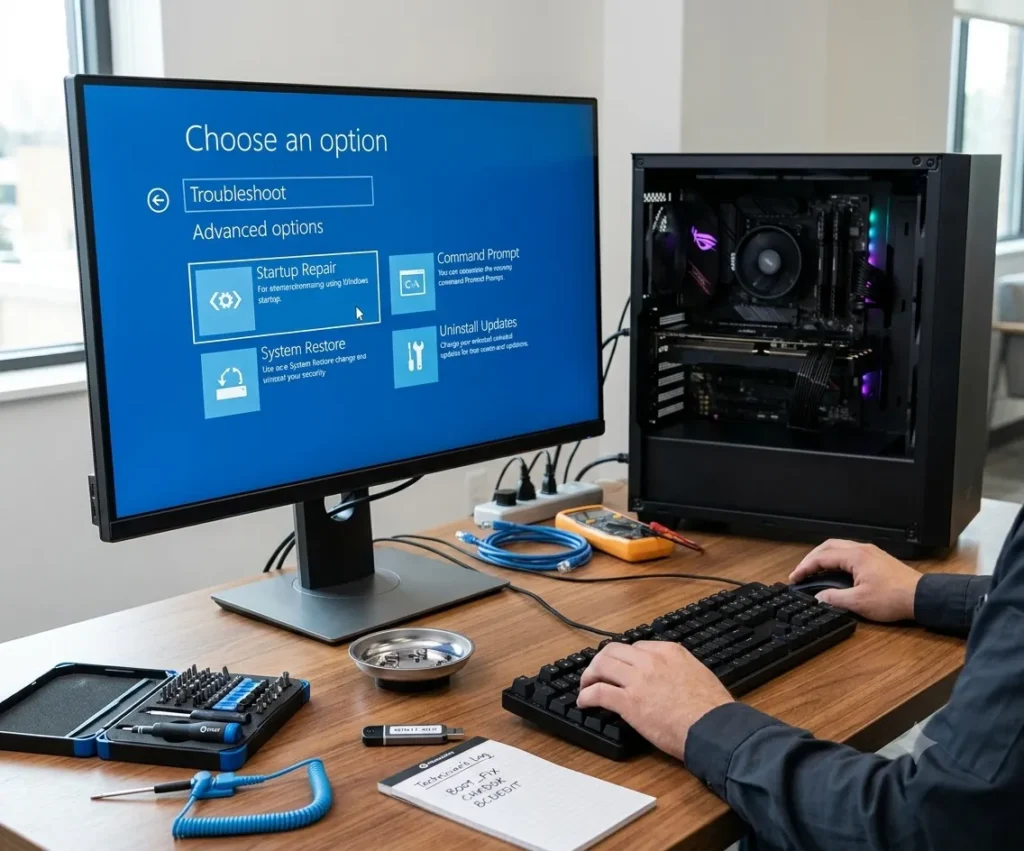
Microsoft describes Windows Recovery Environment (WinRE) as a set of built-in recovery tools designed to troubleshoot and repair startup problems. It includes options such as Startup Repair, Command Prompt, System Restore, Startup Settings, and Uninstall Updates.
When Windows can’t start normally, WinRE provides a range of tools, including:
- Startup Repair
- Command Prompt
- System Restore
- Safe Mode options
- Uninstall Updates
- Reset this PC
You can access WinRE by interrupting the Windows startup process a few times in a row, or by using Windows installation media directly. For the Inaccessible Boot Device error specifically, WinRE matters because it lets you repair Windows without ever needing the operating system to boot normally first.
Windows Recovery Environment (WinRE) provides repair tools such as Startup Repair, Command Prompt, System Restore, and Uninstall Updates when Windows cannot start normally.
Run Windows Startup Repair
Windows Startup Repair is one of the safest tools to try first, since it automatically checks for common startup problems and attempts to fix them on its own.
Startup Repair is designed to automatically diagnose and repair many common Windows startup problems. It analyzes startup-related issues and attempts to fix whatever is preventing Windows from loading correctly.
Startup Repair can typically resolve issues related to:
- Missing boot files
- Damaged startup configuration
- Boot Configuration Data (BCD) problems
- Certain system file errors
To run Startup Repair:
- Open Windows Recovery Environment (WinRE).
- Select Troubleshoot.
- Choose Advanced Options.
- Select Startup Repair.
- Allow Windows to scan and repair startup problems.
Once the repair finishes, restart your computer and check whether Windows loads normally. If Startup Repair can’t resolve the problem, continue on to the more advanced troubleshooting methods below.
Boot Windows into Safe Mode
Safe Mode loads Windows using only its essential drivers and services. If Windows manages to start successfully in Safe Mode, the underlying problem is often a faulty driver, a recent update, or some kind of software conflict rather than a hardware issue.
To enter Safe Mode:
- Open the Windows Recovery Environment (WinRE).
- Select Troubleshoot.
- Open Advanced options.
- Choose Startup Settings.
- Restart your computer.
- Press 4 or F4 to start Safe Mode.
If Windows boots successfully this way, uninstall any recently installed drivers, updates, or software before attempting to restart normally again.
Run CHKDSK
Disk errors can damage important Windows files over time and prevent the operating system from properly accessing the boot partition. The CHKDSK command scans the drive for file system errors and bad sectors, which can help identify or resolve the issue.
Open Command Prompt from the Windows Recovery Environment and run:
chkdsk C: /f /r
Replace C: with your Windows drive letter if necessary. The scan may take anywhere from several minutes to several hours, depending on the size and condition of the drive.
Note: If your drive makes clicking sounds or frequently disappears from BIOS, avoid running CHKDSK until your important files have been backed up. A failing drive can actually worsen under intensive disk repair operations.
Remove Extra Storage Drives
If your computer has multiple SSDs or hard drives connected, disconnect every drive except the one containing Windows. Sometimes Windows mistakenly attempts to load boot files from the wrong drive when multiple drives are present.
After disconnecting the extra drives:
- Restart the computer.
- Check whether Windows starts normally.
- Reconnect the additional drives only after confirming the problem is resolved.
Reinstall Storage Controller Drivers
A damaged storage controller driver can prevent Windows from communicating with the boot drive altogether. If you recently updated storage drivers, boot into Safe Mode and reinstall the correct driver for your specific system. Common storage drivers include:
- Intel Rapid Storage Technology (Intel RST)
- Standard SATA AHCI Controller
- NVMe Controller Driver
- AMD RAID Controller
After reinstalling the correct driver, restart your computer and check whether the issue is resolved.
Check SATA Cables and Power Connections
Loose or damaged cables can interrupt communication between the motherboard and the storage drive at any point during startup. Desktop users should:
- Reseat the SATA cable.
- Check the power connector.
- Try another SATA port.
- Replace the SATA cable if one is available.
Laptop users should make sure the SSD is seated correctly, especially if it was recently replaced.
Use System Restore
If the error started right after a Windows update, driver installation, or software change, System Restore may be able to return Windows to an earlier, working state.
To use System Restore:
- Open Windows Recovery Environment.
- Select Troubleshoot.
- Choose Advanced Options.
- Select System Restore.
- Pick a restore point created before the problem started.
Once the restoration finishes, restart your computer to check whether things are back to normal.
Reinstall Windows
If none of the previous methods have worked, reinstalling Windows may become necessary as a last resort. Before reinstalling, make sure to:
- Recover important files if possible.
- Confirm the storage drive is healthy.
- Make sure the problem isn’t actually caused by failing hardware.
A clean Windows installation replaces damaged system files entirely and rebuilds the boot environment from scratch.
Check for Drive Failure
If Windows still can’t start after all of this, your storage device may have genuinely failed. Signs of drive failure include:
- Clicking or grinding sounds
- Frequent freezing
- Extremely slow performance
- SMART warnings
- The drive disappearing from BIOS
- Repeated read or write errors
If you notice any of these symptoms, avoid repeated repair attempts and instead focus on recovering your important files before the drive fails completely.
MBR vs GPT
Windows can store its boot information using either Master Boot Record (MBR) or GUID Partition Table (GPT). Knowing which partition style your computer uses helps you choose the correct recovery method for your situation.
What Is MBR?
MBR is the older partition style used by Legacy BIOS systems, storing boot information in the very first sector of the disk. Although MBR still works well on older computers, it comes with a few notable limitations:
- Supports drives up to 2 TB
- Allows only four primary partitions
- Uses Legacy BIOS
Many older Windows installations continue to run on MBR to this day.
What Is GPT?
GPT is the modern partition style used alongside UEFI firmware. Instead of storing boot information in a single location, GPT keeps multiple copies of important partition data, which makes it considerably more reliable overall. GPT also supports:
- Drives larger than 2 TB
- More partitions
- Better recovery options
- Improved reliability
Most Windows 11 computers use GPT by default.
Why It Matters
If Windows was installed using GPT but the BIOS starts in Legacy mode, Windows may display the Inaccessible Boot Device error. The same problem can happen in reverse too, where an MBR installation fails after the computer switches to UEFI mode without the proper configuration in place. Always make sure that GPT disks use UEFI, and that MBR disks use Legacy BIOS.
Advanced Repair Methods for Stop Code 7B
If basic troubleshooting methods haven’t resolved the problem, advanced users can repair Windows startup files manually. These methods are particularly useful when the error is being caused by:
- Corrupted Boot Configuration Data (BCD)
- Damaged EFI boot files
- Missing startup entries
- MBR or boot sector problems
Before using any advanced commands, take the time to identify the correct Windows partition and EFI System Partition first, so you avoid accidentally modifying the wrong drive.
Microsoft Advanced Troubleshooting for Stop Error 7B
If the previous methods haven’t fixed the Inaccessible Boot Device error, Microsoft recommends turning to the advanced recovery tools available in the Windows Recovery Environment (WinRE). These tools can help repair damaged boot files, rebuild the boot configuration, and restore Windows startup from a much deeper level.
Before using these commands, make sure you know which drive actually contains your Windows installation, since in WinRE the Windows drive may not always be assigned the letter C: like you’d expect.
You can identify the correct drive by opening Command Prompt and running:
diskpart
list volume
Look for the partition that contains the Windows folder. Once you’ve identified the correct drive, exit DiskPart by typing:
exit
You can now continue on with the appropriate repair method for your situation.
Format the EFI Partition
Modern Windows computers use an EFI System Partition (ESP) to store the files needed for UEFI startup. If the EFI partition becomes damaged or corrupted, Windows may fail to boot even though the operating system itself is still installed correctly.
In some advanced recovery situations, formatting the EFI partition and recreating the boot files from scratch can solve the problem. Before formatting the EFI partition, though:
- Make sure you have a recent backup.
- Confirm that you’ve selected the correct partition.
- Understand that formatting the wrong partition can make Windows completely unbootable.
This repair method is recommended only after standard startup repairs have already failed.
Use DiskPart
DiskPart is a built-in Windows utility that manages disks, partitions, and volumes. It allows you to identify the EFI System Partition and assign it a temporary drive letter when needed.
Open Command Prompt in WinRE and start DiskPart:
diskpart
Display all available disks:
list disk
Select the Windows disk:
select disk 0
Display the partitions:
list partition
Locate the small EFI System Partition, then select it:
select partition X
Replace X with the correct partition number. Assign a temporary drive letter:
assign letter=S
The EFI partition can now be accessed for additional repair commands. When finished, type:
exit
to close DiskPart.
Tip: Always double-check the selected partition before making any changes, since selecting the wrong one may cause permanent data loss.
Rebuild Boot Configuration Data (BCD)
The Boot Configuration Data (BCD) contains the information Windows uses to locate and start the operating system. If the BCD becomes corrupted or gets deleted, Windows won’t be able to find the installed operating system, and this is often exactly what triggers the Inaccessible Boot Device stop code.
To scan for Windows installations, open Command Prompt and run:
bootrec /scanos
If Windows is detected, rebuild the BCD store by running:
bootrec /rebuildbcd
When prompted to add the Windows installation to the boot list, type Y and press Enter. After rebuilding the BCD, restart the computer to check whether Windows starts normally again.
Use BCDBOOT
If rebuilding the BCD doesn’t solve the problem, BCDBOOT can help recreate the Windows boot files from scratch. Unlike BOOTREC, which repairs existing boot records, BCDBOOT copies fresh boot files directly from the Windows installation over to the EFI System Partition.
Assuming Windows is installed on D: and the EFI partition uses drive S:, run:
bcdboot D:\Windows /s S: /f ALL
The /f ALL option creates both BIOS and UEFI boot files, making the system compatible with either startup mode. The process may take a few minutes to complete. Once it’s finished, restart your computer. If the boot files were indeed the cause of the problem, Windows should now load normally.
bootrec /fixmbr
The bootrec /fixmbr command writes a new Master Boot Record (MBR) without touching your personal files or existing partitions. This command is mainly used on systems that boot using Legacy BIOS.
Run:
bootrec /fixmbr
This command can help if:
- The Master Boot Record is damaged.
- Malware modified the MBR.
- Another operating system overwrote the boot record.
Although modern UEFI systems usually rely on GPT instead of MBR, this command still remains useful for older Windows installations.
bootrec /fixboot (Access Denied)
The bootrec /fixboot command writes a new boot sector to the system partition. Run:
bootrec /fixboot
However, many Windows 10 and Windows 11 users end up receiving this message instead:
Access is denied.
This is a fairly common issue on UEFI systems and doesn’t always indicate a serious underlying problem. If you receive the Access is denied error:
- Do not continue running the command repeatedly.
- Verify that the EFI System Partition has a drive letter assigned.
- Use BCDBOOT to recreate the boot files instead.
In many cases, BCDBOOT successfully repairs startup files even in situations where bootrec /fixboot fails outright.
Windows Repair Tools Explained
Different Windows repair tools solve different startup problems.
| Tool | Best Used For |
| Startup Repair | Automatic Windows boot problems |
| CHKDSK | File system errors and bad sectors |
| SFC | Corrupted Windows system files |
| DISM | Repairing Windows image corruption |
| BOOTREC | Repairing boot records |
| BCDBOOT | Recreating Windows boot files |
Using the wrong repair command may waste time. Start with automatic tools first, then move to advanced commands if the problem continues.
Understanding the Recovery Commands
The following table explains what each command does and when you should reach for it.
| Command | Purpose | When to Use It |
| diskpart | Manages disks and partitions | Identify the EFI partition or assign a drive letter. |
| bootrec /scanos | Searches for Windows installations | Check whether Windows is detected. |
| bootrec /rebuildbcd | Rebuilds the Boot Configuration Data | Repair missing or corrupted boot entries. |
| bcdboot | Copies fresh Windows boot files | Recreate missing boot files on the EFI partition. |
| bootrec /fixmbr | Writes a new Master Boot Record | Repair damaged MBR on Legacy BIOS systems. |
| bootrec /fixboot | Writes a new boot sector | Repair the boot sector if supported. |
Using the correct command at the right time can save you hours of unnecessary troubleshooting. If one command doesn’t solve the problem, move on to the next recommended method rather than repeating the same repair over and over.
Can You Recover Files From an Inaccessible Boot Device?
Yes, in many cases you can still recover your files even when Windows itself refuses to start. The error usually prevents Windows from booting, but that doesn’t necessarily mean your files have been deleted or lost for good.
Before running any advanced repairs, consider:
- Connecting the drive to another computer
- Using a USB-to-SATA adapter
- Booting from a recovery USB
- Copying important files directly from Command Prompt
If the drive shows signs of physical failure, such as clicking noises or repeatedly disappearing from BIOS, it’s best to avoid repeated repair attempts and focus on data recovery first instead.
Be Careful When Running Repairs
Windows includes several recovery tools that can fix startup problems, but not every repair method is equally safe for every situation you might encounter.
If the Inaccessible Boot Device error is caused by corrupted system files or damaged boot records, tools like Startup Repair, CHKDSK, System File Checker (SFC), DISM, BOOTREC, and BCDBOOT can often restore Windows successfully on their own.
However, if your SSD or HDD has an actual physical problem, repeated repair attempts may place additional stress on the drive, and this can make eventual data recovery considerably more difficult. Before running any advanced repair commands, it’s worth checking for signs of hardware failure first.
Signs Your Drive May Be Failing
Stop using the computer immediately if you notice any of these symptoms:
- Clicking, grinding, or buzzing sounds from the drive
- The SSD or HDD disappears from BIOS or UEFI
- Frequent freezing during startup
- Extremely slow file access
- SMART health warnings
- Repeated read or write errors
- Windows repeatedly fails to detect the boot drive
If any of these problems appear, recovering your important files should always come before attempting to repair Windows itself.
Avoid Repeated Repair Attempts
If Windows continues showing the Inaccessible Boot Device error after several repair attempts, it’s time to stop repeating the same commands over and over. Instead:
- Review the original cause.
- Check the BIOS or UEFI settings again.
- Confirm the boot drive is healthy.
- Verify that Windows detects the storage device.
- Consider recovering your files before continuing further.
A systematic, methodical approach almost always produces better results than repeatedly trying the same repair and hoping for a different outcome.
When to Contact a Data Recovery Specialist
Most Inaccessible Boot Device errors are caused by software issues and can be repaired without losing any files in the process. That said, some situations genuinely call for professional help.
You should consider contacting a data recovery specialist if:
- The drive makes unusual clicking or grinding sounds.
- The drive no longer appears in BIOS or UEFI.
- Windows freezes every time you try to access the drive.
- Important business or personal files have not been backed up.
- The drive has suffered physical damage.
- Previous repair attempts have failed.
Professional recovery companies use specialized equipment to read damaged storage devices and recover files safely, often creating a complete image of the drive before attempting any repairs at all. This significantly reduces the risk of permanent data loss compared to DIY attempts.
If your files are genuinely valuable to you, avoid opening the drive yourself or continuing with repeated repair attempts, since every unnecessary operation can reduce the chances of a successful recovery down the line.
How to Prevent Inaccessible Boot Device Error
Although this error can’t always be avoided entirely, there are several practical steps that can meaningfully reduce your chances of ever seeing it. Follow these practices:
- Keep regular backups of important files.
- Avoid forcing shutdowns during Windows updates.
- Do not change AHCI, RAID, or VMD settings without knowing exactly what they do.
- Keep storage and chipset drivers updated.
- Monitor SSD or HDD health regularly.
- Replace failing drives before they fail completely.
- Create a Windows recovery drive ahead of time.
Preparing your system in advance makes recovery considerably easier if a boot problem does eventually occur.
Frequently Asked Questions
What does the Inaccessible Boot Device error mean?
The Inaccessible Boot Device error means Windows cannot access the drive or partition that contains the operating system during startup. This usually happens because of corrupted boot files, storage driver problems, BIOS changes, or a failing storage device.
Can a Windows update cause the Inaccessible Boot Device error?
Yes. A failed or interrupted Windows update can damage startup files or install an incompatible storage controller driver. If the error started right after an update, uninstalling the latest update from the Windows Recovery Environment may fix the problem.
Can a failing SSD or HDD cause this error?
Yes. A damaged SSD or HDD can prevent Windows from reading the boot partition. If your drive makes unusual noises, disappears from BIOS, or shows SMART warnings, back up your files before attempting any repairs.
Is it safe to run CHKDSK?
In most cases, CHKDSK is safe and can repair file system errors without issue. However, if the drive shows signs of physical failure, running CHKDSK may place additional stress on the hardware. Recover your important files first if you suspect hardware damage.
What is the difference between BOOTREC and BCDBOOT?
BOOTREC repairs existing boot records and the Boot Configuration Data (BCD), while BCDBOOT copies fresh Windows boot files from your Windows installation to the EFI System Partition. It’s often used specifically when startup files are missing or corrupted.
Can changing BIOS settings cause the Inaccessible Boot Device error?
Yes. Switching the storage mode between AHCI, RAID, or IDE after Windows has already been installed can prevent Windows from accessing the boot drive. Restoring the original setting usually resolves the problem.
Will reinstalling Windows fix the Inaccessible Boot Device error?
A clean Windows installation can fix software-related startup problems, but it won’t repair a failing SSD, damaged HDD, or faulty storage controller. Always confirm the hardware is working correctly before reinstalling Windows.
Can I recover my files before repairing Windows?
Yes. If the drive is still accessible, you can back up your files using another computer, a USB-to-SATA adapter, a recovery drive, or a Linux Live USB. Recovering your files first is always the safest approach when hardware failure is suspected.
Conclusion
The Inaccessible Boot Device error can prevent Windows from starting, but it doesn’t always mean your computer or storage drive has failed for good. In many cases, the problem comes down to corrupted boot files, storage driver issues, incorrect BIOS settings, or a failed Windows update.
Start with the simplest solutions first, such as restarting the computer, checking recent changes, and verifying your BIOS or UEFI settings. If those methods don’t work, use the Windows Recovery Environment to repair the boot configuration, rebuild the Boot Configuration Data, or recreate the boot files with BCDBOOT.
If your SSD or HDD shows signs of physical failure, avoid repeated repair attempts until your important files have been backed up. Recovering your data should always come before repairing or reinstalling Windows.
By following the troubleshooting steps in this guide, you can identify the cause of the Inaccessible Boot Device error and choose the safest, most effective solution to get your Windows 10 or Windows 11 computer running again.
The Inaccessible Boot Device error usually points to a communication problem between Windows and the storage device. Identifying whether the cause is software, configuration, drivers, or hardware failure is the key step toward choosing the correct repair method.