What Is a Vector File? Complete Beginner’s Guide (2026)
Most people don’t search for “what is a vector file” because they want to learn graphic design. They search because they’re stuck.
Maybe a printer asked you to upload a vector version of your logo. Perhaps a designer requested an AI, SVG, or EPS file, but all you have is a JPG from your website. Or maybe you’ve just discovered that your logo looks blurry when printed on a banner or business card.
If you’ve experienced any of these situations, you’re not alone. It’s one of the most common questions people ask when preparing artwork for printing, creating marketing materials, or building a brand.
The good news is that the concept is much simpler than it sounds.
In this guide, you’ll learn what a vector file is, how it differs from raster images, why designers and printers ask for it, how to check whether you already have one, and what to do if you don’t. By the end, you’ll know exactly which file format to use and avoid the costly mistakes that often lead to blurry logos and poor-quality prints.
What Is a Vector File? (Quick Answer)
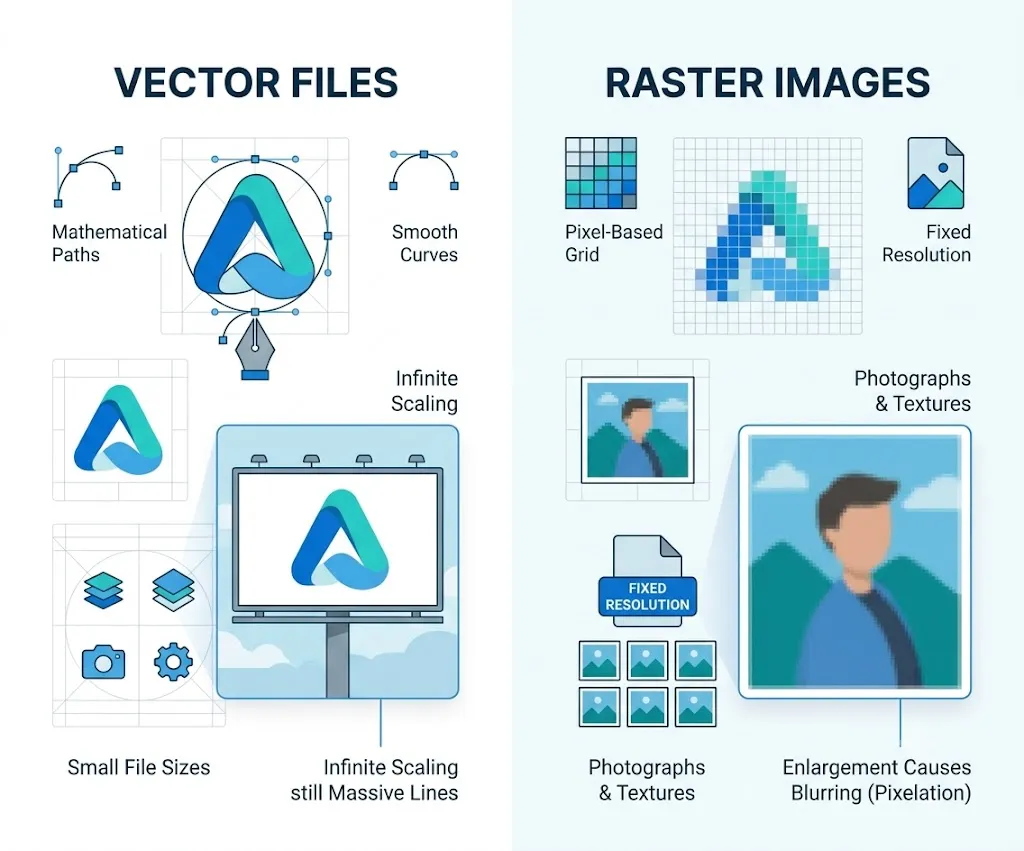
A vector file is a digital graphic made from mathematical paths instead of pixels. Because it uses lines, curves, and shapes, it can be resized to any dimension without losing quality. Common vector file formats include AI, SVG, EPS, and some PDF files.
| At a Glance | |
| Best For | Logos, icons, illustrations |
| Can Resize? | Unlimited |
| Loses Quality? | No |
| Most Common Formats | AI, SVG, EPS, PDF |
| Not Good For | Photos |
| Used By | Designers, printers, developers |
What Is a Vector Image File, and Why Is It So Important for Design and Print?
It helps to think of a vector file as a set of drawing instructions rather than a finished picture. Instead of saving millions of tiny colored dots, the file tells the computer exactly how to draw each individual shape. Every time the image is resized, the computer redraws it from scratch using those instructions, which is why the image stays crisp no matter how large or small it becomes.
This behavior is precisely what makes vector files the standard choice for professional design and printing. Consider a company logo, for example. That same logo might need to appear on a website, a business card, a coffee mug, a delivery truck, and a large billboard, all at wildly different sizes. A vector version can be used for every single one of these applications without ever losing quality.
Raster images, such as JPG and PNG files, simply cannot do this, because they are built from a fixed number of pixels that stretch and blur once you scale beyond their original resolution.
How Does a Vector File Work?
A vector file works quite differently from a regular image. Instead of storing millions of tiny colored pixels, it stores mathematical instructions that tell a computer precisely how to draw each shape on the page.
It’s often easiest to think of it like a recipe rather than a photograph. A circle in a vector file, for instance, isn’t saved as thousands of individually colored dots. Instead, the file simply stores information such as the circle’s center point, its radius, its fill color, and its outline. Every time you resize the image, your computer recalculates and redraws the circle using those same core instructions.
Because the artwork is recreated mathematically rather than stretched pixel by pixel, it always stays smooth and sharp at any size. This is exactly why vector files are so well suited to logos, icons, illustrations, and other graphics that need to appear at many different sizes across different platforms. Also Pixel art in classic games like those featured in our best GBA games guide is created using raster graphics rather than vector images.
Industry Note: The Scalable Vector Graphics (SVG) format is an open standard developed by the World Wide Web Consortium (W3C). Modern web browsers support SVG natively because it allows graphics to scale without losing quality while keeping file sizes efficient for logos, icons, and illustrations.
Vector File vs. Raster File
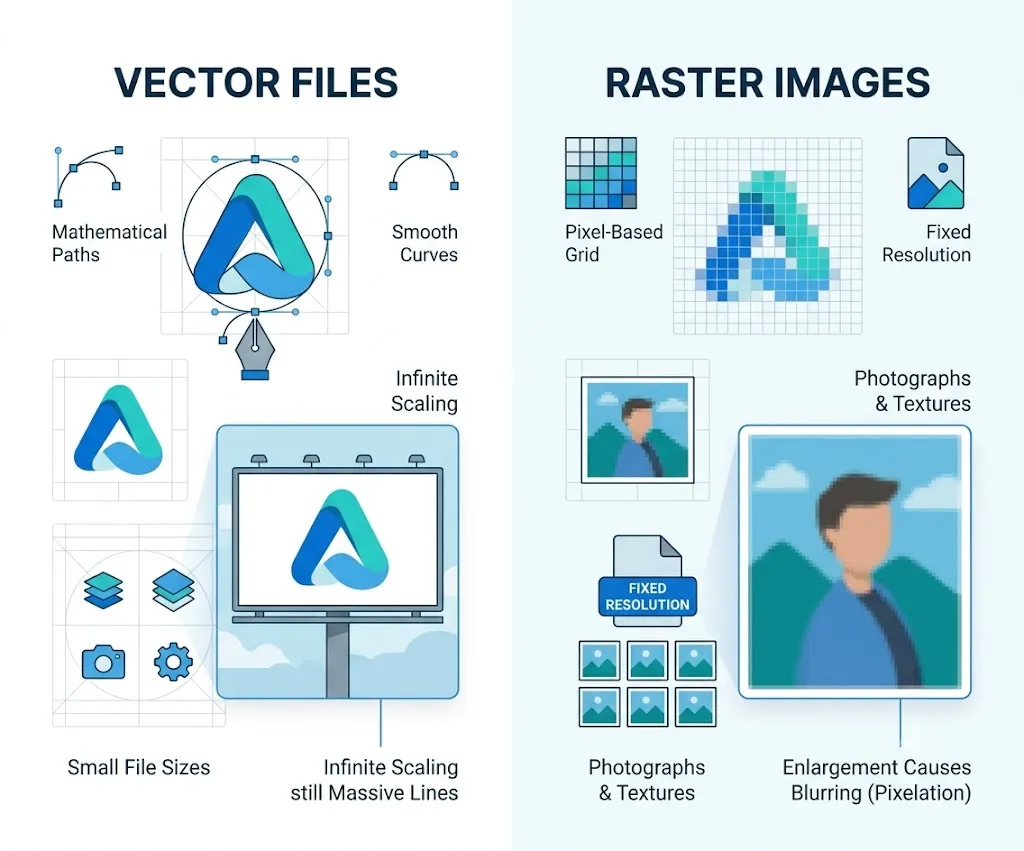
Although both formats are used to store images, they work in fundamentally different ways, and understanding that difference makes it much easier to choose the right one for a given project.
| Feature | Vector File | Raster File |
| Made From | Mathematical paths | Pixels |
| Quality When Enlarged | Always sharp | Becomes blurry |
| Best For | Logos, icons, illustrations | Photos |
| Editable | Yes | Limited |
| Common Formats | AI, SVG, EPS | JPG, PNG, GIF |
What Is a Vector Image File and Why Does It Matter?
Most people only start thinking about image quality once something already looks blurry. However, the type of image file you choose actually affects far more than just how sharp it appears on screen.
Beyond image quality, vector files make branding easier because designers can update colors, layouts, and individual objects without recreating the artwork.
For example, if your business logo needs a simple color update, a designer can edit the vector file directly without having to recreate the entire design from scratch. If you only have a PNG or JPG version of your logo, on the other hand, editing becomes far more difficult, since every change ends up affecting the underlying pixels of the image itself.
Using a vector file also helps you keep your branding visually consistent across every product and platform your business touches.
Why Do Designers Ask for a Vector File Format?
Many business owners wonder why designers and print shops almost always ask for vector artwork instead of a regular image file. The answer, fortunately, is fairly simple.
Professional printing requires graphics that stay sharp at every possible size. Imagine trying to print a small website logo onto a six-foot banner. If that logo is a JPG, it will almost certainly look blurry once enlarged, because the image only has a fixed resolution to begin with. A vector file solves this problem entirely, since it scales mathematically without ever losing detail.
Designers also favor vector files because they’re simply easier to edit. With a vector file, they can:
- Change colors
- Resize objects
- Edit text
- Adjust shapes
- Export different file formats
All of these changes can be made without reducing image quality in any way, which is exactly why vector files have become the standard format for professional branding work.
When Someone Will Ask You for a Vector File
You may be asked for one when:
- Ordering a banner
- Printing brochures
- Creating uniforms
- Making stickers
- Buying promotional products
- Designing packaging
- Hiring a graphic designer
- Creating signage
- Building a website
- Embroidering clothing
This aligns with real user journeys.
What If You Don’t Have a Vector File?
If a printer asks for a vector file but all you have on hand is a JPG or PNG logo, there’s no need to panic. This is an extremely common situation for business owners, and there are several reliable ways to work around it.
Here are your options:
- Contact the original designer and ask for the editable AI, SVG, or EPS file.
- Check whether you received a vector PDF when the logo was originally created.
- Have a designer recreate the logo as a proper vector file.
- Use image tracing for simple artwork, then refine the results manually for the best quality.
- Avoid changing the file extension from .jpg to .svg or .eps, since this does not create a real vector file, it only renames it.
What Makes Vector Files Truly Powerful for Designers and Printers?
The major advantage of Vector files for designers and printers is a file reuse. A single vector logo can be used across websites, social media, business cards, vehicle wraps, uniforms, merchandise, packaging, and advertising. Instead of creating a separate file for every project, businesses really only need one master vector file to cover them all.
Common Vector File Formats Explained
Not all vector files use the same underlying format, and each one tends to serve a slightly different purpose depending on how the artwork will be used.
AI (.AI)
AI is the native file format used by Adobe Illustrator. It stores fully editable vector artwork and is commonly used by graphic designers because it preserves every layer, path, and object exactly as it was created. If you anticipate needing future design changes, an AI file is generally the best option to keep on hand.
SVG (.SVG)
SVG stands for Scalable Vector Graphics, and this format is widely used across websites because it loads quickly while remaining sharp at every screen size. SVG files also improve website performance because they are often smaller and more scalable than traditional image formats. If you’re interested in website optimization, explore these tech ideas that made the web move quicker. Unlike a JPG or PNG, an SVG logo looks crisp on desktop computers, tablets, and mobile devices alike. Many modern websites now rely on SVG files specifically for logos, icons, and interface graphics.
Website owners also prefer SVG logos because they stay sharp on high-resolution screens while often loading faster than larger raster images. This improves both visual quality and website performance.
EPS (.EPS)
EPS stands for Encapsulated PostScript, and it has remained a trusted format in the printing industry for many years. Many commercial printers still request EPS files specifically because they work reliably across different printing systems while preserving full vector quality. If you’re preparing artwork for signs, banners, or promotional products, an EPS file is usually accepted without issue.
PDF (.PDF)
Many people assume that every PDF is automatically a vector file, but that isn’t always true. A PDF can contain vector graphics, raster images, or a combination of both. If a designer exports artwork directly from vector software, the resulting PDF usually retains that vector information. However, if someone simply saves a JPG inside a PDF, the image remains a raster file underneath. This is exactly why two PDF files can look nearly identical on screen yet behave very differently once printed or edited.
Did You Know? Adobe Illustrator (.AI) is the industry-standard format for editing vector artwork, while SVG is the preferred format for scalable graphics on websites. Many professional print providers also accept EPS or vector-based PDF files for commercial printing.
| File Type | Vector? | Best Use |
| AI | ✅ | Master editing file |
| SVG | ✅ | Websites & apps |
| EPS | ✅ | Commercial printing |
| ✅ Sometimes | Sharing & printing | |
| PNG | ❌ | Websites & social media |
| JPG | ❌ | Photos |
| GIF | ❌ | Animations |
| TIFF | ❌ | High-resolution photos |
Which Vector File Format Should You Choose?
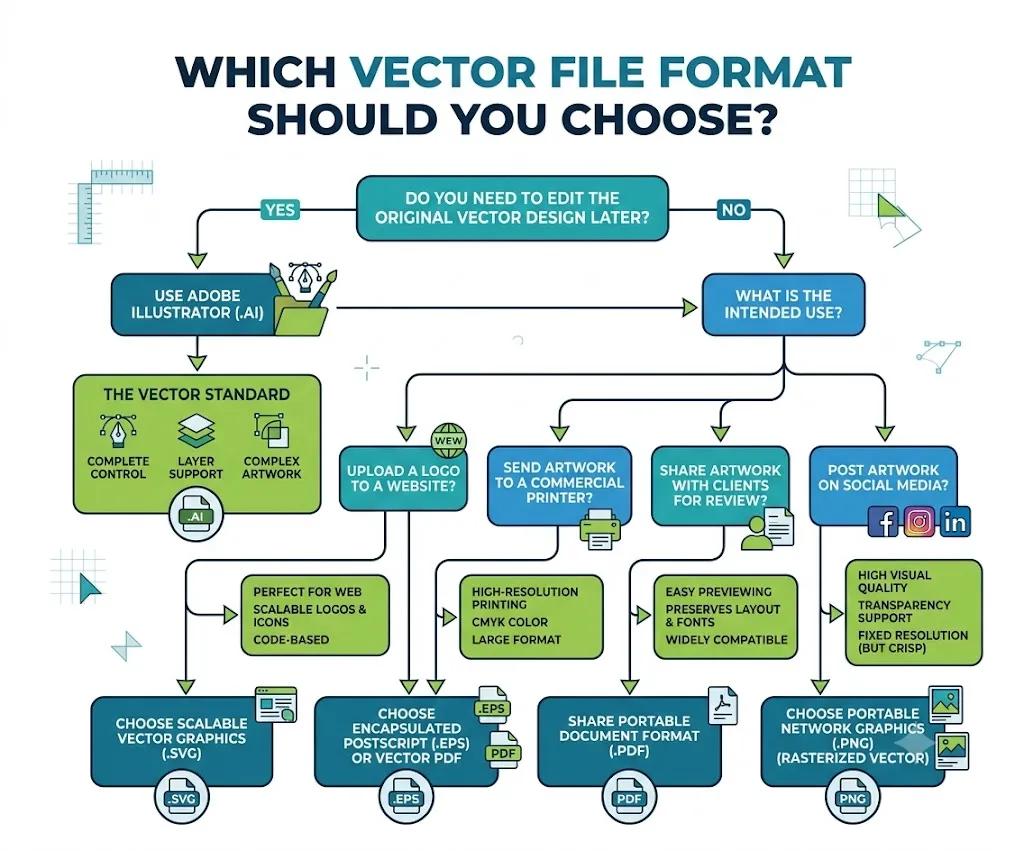
Each vector format serves a slightly different purpose, so choosing the right one really depends on how you plan to use the artwork going forward.
| If You Need… | Best File Format |
| Edit your design later | AI |
| Upload a logo to a website | SVG |
| Send artwork to a printer | EPS |
| Share artwork with clients | |
| Use the logo on social media | PNG (exported from vector) |
Starting a new business? Ask your designer for the original AI or SVG file along with PNG and PDF versions as well. Keeping the master vector file on hand means you won’t need to redesign your logo from scratch every time you create new packaging, signage, or marketing materials down the road.
Which File Should You Use?
Key Takeaways
- A vector file uses mathematical paths instead of pixels.
- Vector graphics stay sharp at any size.
- Designers use vector files for logos, illustrations, and branding.
- AI, SVG, EPS, and some PDF files are common vector formats.
- Vector files are easier to edit than raster images.
- Professional printers usually prefer vector artwork because it produces cleaner results.
How to Edit and Create Vector Files
Creating or editing a vector file is easier than a lot of people assume, since really all you need is the right software to get started. Professional designers often reach for Adobe Illustrator, though there are also several free and beginner-friendly alternatives that work perfectly well for simpler projects.
Popular vector editing software includes:
- Adobe Illustrator
- Inkscape
- Affinity Designer
- CorelDRAW
- Figma (for interface design)
- Linearity Curve (formerly Vectornator)
These programs all let you create artwork using paths instead of pixels, so you can draw shapes, edit curves, add text, and change colors freely without ever affecting overall image quality. Once your design is finished, you can save it in formats like AI, SVG, EPS, or PDF, depending on how you ultimately plan to use it.
One of the biggest advantages of a vector file is that it remains fully editable long after it’s created. Every object is stored as a separate shape rather than baked into a single fixed image, which means you can update one part of the design without disturbing anything else.
For example, you can:
- Change your logo color.
- Replace the text.
- Resize individual elements.
- Remove or add shapes.
- Export the artwork into different formats.
This flexibility is exactly why businesses always try to keep the original vector version of their logo close at hand. Doing so saves a significant amount of time and avoids the need to recreate the entire design whenever changes become necessary.
Tip: Always keep your original AI or SVG file safely stored, and only export PNG or JPG copies when you actually need them for websites, emails, or social media.
Real-World Example
Imagine you’re opening a coffee shop.
Your designer creates your logo as an AI file.
From that single master file, they export:
• SVG for your website
• PNG for Instagram
• PDF for email sharing
• EPS for printing menus
• AI for future edits
Instead of creating five different logos, one vector file powers every version.
This helps beginners understand the workflow.
Why Your Logo Must Be a Vector File
Your logo is one of the single most valuable parts of your brand identity, so it deserves to be handled correctly from the very start.
Imagine you own a coffee shop, a plumbing business, a law firm, or an online store. Today, your logo might only appear on your website, but tomorrow you may need it on business cards, uniforms, storefront signs, delivery vehicles, or promotional products. A vector file ensures your logo looks professional everywhere it appears, regardless of the size it’s displayed at.
A vector logo solves this problem completely. Because it’s fully scalable, the exact same logo can be printed on a pen, embroidered on a shirt, or displayed on a billboard without ever becoming blurry. A vector logo also makes life much easier for designers and printers preparing marketing materials, since they can adjust colors, resize artwork, or build new designs while keeping every detail perfectly sharp.
If your business currently only has a JPG or PNG logo, it’s worth investing in a vector version. It will save time and noticeably improve quality across all of your future projects.
Expert Insight: Professional designers usually create a logo only once as a vector file. From that master file, they export PNG, JPG, PDF, SVG, and other formats whenever needed. This ensures the original artwork remains editable and maintains consistent quality across websites, packaging, signage, apparel, and print materials.
Where Will You Need a Vector File?
Many people assume vector files are only relevant for logos, but in reality they’re used across a wide range of industries and applications.
Branding
Businesses rely on vector files for logos, brand icons, and marketing materials in order to keep their visual identity consistent everywhere it appears. Marketing teams often use the exact same logo across websites, presentations, social media, email campaigns, brochures, packaging, and trade show displays. Keeping a vector version on hand ensures every department is working from the same high-quality brand asset.
Printing
Flyers, brochures, posters, business cards, and product packaging all benefit noticeably from vector graphics, since the artwork prints with consistently sharp edges. Ecommerce businesses also rely heavily on vector files for product packaging, shipping boxes, thank-you cards, product labels, and promotional inserts. Using a vector logo helps maintain a consistent brand image across every single customer touchpoint.
Large-Format Signage
Billboards, banners, vehicle wraps, and storefront signs all require artwork that can be enlarged dramatically without ever losing quality, which makes vector files essentially non-negotiable for this kind of large-scale production.
Websites and Mobile Apps
SVG files help websites display sharp, clean logos and icons across every screen size, from small smartphones all the way up to large desktop monitors.
Apparel and Merchandise
Vector artwork is commonly used for T-shirts, hats, mugs, stickers, and other promotional products, largely because it’s so easy to resize and edit as needed for different product formats.
Vinyl Cutting and Laser Engraving
Machines that cut vinyl or engrave materials typically require vector paths in order to follow precise, clean outlines. Large-format graphics such as billboards, vehicle wraps, exhibition displays, and storefront signs are commonly produced using vector artwork for exactly this reason, since the graphics can be enlarged significantly without losing sharpness. This is one of the main reasons print shops so often request vector logos instead of images pulled straight from a website.
Crafting and Cutting Machines
Hobbyists and small business owners frequently use SVG vector files with cutting machines like Cricut and Silhouette to create stickers, vinyl decals, custom apparel, greeting cards, and home décor. These machines follow vector paths directly, which allows them to produce clean and highly accurate cuts.
When Should You Not Use a Vector File?
Although vector files excel at handling graphics, they aren’t always the best choice for every type of image out there.
Photographs typically contain millions of colors and extremely fine details. Trying to recreate an image like that as a vector often results in unnecessarily large and overly complex files that don’t offer any real benefit.
Raster formats such as JPG, PNG, or TIFF tend to work better for:
- Portrait photography
- Landscape images
- Product photos
- Realistic artwork
- Images with detailed textures
Vector files, by contrast, work best for graphics built from clean lines, simple shapes, and text.
Why Can’t I Send a Logo Saved From My Website?
This is one of the most common questions designers hear from clients. The logo displayed on your website is usually saved as a PNG, JPG, or WebP image, and these formats are designed primarily for fast loading rather than high-quality printing.
When someone tries to enlarge it for a banner or sign, those pixels have to stretch well beyond their original size, and as a result the logo becomes blurry and loses fine detail.
A true vector file avoids this problem entirely, since it redraws the artwork mathematically instead of stretching existing pixels. That’s exactly why printers usually ask for AI, EPS, SVG, or a vector PDF instead of an image pulled directly from a website.
How to Check if You Have a Vector File
Not sure whether your logo is actually a vector file? Here are a few simple ways to find out for certain.
1. Check the File Extension
Vector files usually carry one of these extensions:
- AI
- SVG
- EPS
Some PDF files are also vectors, though not all of them are. If your file ends with JPG, JPEG, PNG, GIF, or WebP, it is a raster image rather than a vector one.
2. Zoom In
Open the file and zoom in to 500% or even 1000% magnification. If the edges stay perfectly smooth at that zoom level, the file is very likely a vector. If you start noticing square pixels or blurry edges instead, it’s a raster image.
3. Open It in Vector Software
Programs like Adobe Illustrator or Inkscape can quickly reveal whether the artwork contains editable paths. If you’re able to select individual shapes and anchor points within the file, it is a vector.
4. Ask the Original Designer
If a designer originally created your logo, they should still have the master vector files on hand. These are typically saved as AI, SVG, or EPS.
Pro Tip: Zooming into an image is a quick way to check whether it’s vector or raster, but it isn’t entirely foolproof. The most reliable method is to open the file in vector editing software like Adobe Illustrator or Inkscape and verify that it actually contains editable paths rather than pixels.
Common Vector and Raster File Extensions
One of the easiest ways to identify what type of image you’re dealing with is simply by looking at its file extension.
| File Extension | Vector or Raster | Common Use |
| AI | Vector | Professional editing |
| SVG | Vector | Websites |
| EPS | Vector | Commercial printing |
| Both | Sharing and printing | |
| JPG | Raster | Photography |
| PNG | Raster | Web graphics |
| GIF | Raster | Simple animations |
| TIFF | Raster | High-quality printing |
Common Mistakes People Make With Vector Files
Many beginners misunderstand how vector files actually work, and that misunderstanding often leads to a handful of common mistakes worth avoiding.
Saving a JPG as a PDF
Changing a JPG into a PDF does not create a vector file. The image remains a raster graphic even once it’s wrapped inside a PDF container.
Renaming the File Extension
Changing “logo.png” to “logo.svg” does not convert the image into a real vector file. Only the file name changes in this case — the actual image data underneath stays exactly the same.
Assuming Every PDF Is a Vector
Some PDFs do contain genuine vector artwork, while others contain only raster images. The file extension alone won’t tell you which type you’re actually dealing with.
Deleting the Original Vector File
Many businesses end up keeping only PNG copies of their logo. Years later, when they finally need large-format printing, they discover they no longer have the editable vector version at all. It’s always worth keeping the original vector file stored somewhere safe.
Can You Convert a PNG or JPG Into a Vector File?
Yes, though the results really depend on the quality and complexity of the original image. Simple logos with clean lines can often be converted quite successfully, while complex photographs usually cannot be converted with good results.
There are two common methods for doing this.
Automatic Vector Tracing
Many design programs can trace an image automatically, and this method tends to work well for simple logos, icons, and illustrations. That said, it can sometimes create rough edges or unnecessary extra shapes that need manual cleanup afterward.
Manual Redrawing
Professional designers often prefer to recreate the artwork by drawing it again from scratch using vector paths. Although this approach takes considerably more time, it usually produces cleaner and far more accurate results in the end. If your logo is genuinely important to your branding, manual vectorization tends to deliver the best overall quality.
Professional designers typically follow a fairly consistent workflow when converting a logo into vector format:
- Receive the original PNG or JPG logo.
- Import the image into vector software.
- Trace the artwork manually or use an automatic tracing tool.
- Clean up the resulting shapes and curves.
- Save the finished design as AI, SVG, or EPS.
- Export additional formats such as PNG or PDF when needed.
This process results in a clean, fully editable version of the artwork that can then be used confidently for printing, branding, and any future design projects.
Vector File Checklist
Before sending your artwork, make sure:
☐ You have the original AI or SVG file.
☐ The logo stays sharp when zoomed.
☐ Text is editable.
☐ Colors match your brand.
☐ You’ve exported the correct format.
☐ You keep a backup of the master vector file.
Frequently Asked Questions
Is a vector file the same as a PNG?
No, a vector file and a PNG are two fundamentally different types of image files. A vector file uses mathematical paths to construct graphics, while a PNG is made up of individual pixels. Because of this difference, a vector file can be resized without losing quality, whereas a PNG becomes blurry once it’s enlarged too far. If you need a logo for printing or large-format displays, a vector file is almost always the better choice.
Is SVG a vector file?
Yes, SVG (Scalable Vector Graphics) is one of the most common vector file formats in use today. It’s widely used for website logos, icons, illustrations, and user interface graphics because it stays sharp across every screen size. Unlike a PNG or JPG, an SVG can be resized freely without ever becoming blurry.
Is a PDF always a vector file?
No, a PDF can contain vector graphics, raster images, or a mix of both. For example, if a designer exports artwork directly from Adobe Illustrator, the resulting PDF usually retains its vector information intact. However, if someone simply places a JPG inside a PDF and saves it, the image remains a raster graphic underneath. The only reliable way to know for sure is to open the file in vector editing software or inspect its contents directly.
Can I convert a JPG or PNG into a vector file?
Yes, though the results ultimately depend on the original image itself. Simple logos, icons, and illustrations are usually good candidates for vector conversion, while photographs and highly detailed images tend to be much harder to convert well, since they contain thousands of colors and fine details. For the best possible results, professional designers often recreate the artwork manually rather than relying solely on automatic tracing tools.
What is the best vector file format?
The best format really depends on how you plan to use the file. AI is ideal for professional editing within Adobe Illustrator, SVG works best for websites and other digital graphics, and EPS is widely accepted by commercial printers. PDF is convenient for sharing artwork while preserving vector data, as long as it was created correctly in the first place. Keeping your original design saved in AI or SVG format gives you the most flexibility for any future editing.
Why do printers ask for vector files?
Printers need artwork that can be resized without any loss of quality. A logo that looks perfect on a website can easily become blurry once printed on a banner or sign if it’s only available as a PNG or JPG. A vector file allows printers to produce crisp, high-quality graphics at any size, and it also makes it far easier to adjust colors, layouts, and dimensions during the production process itself.
Can I create a vector file for free?
Yes, several free tools let you create or edit vector graphics without any cost. Popular options include:
- Inkscape
- Figma (for many design tasks)
- Linearity Curve (free version available)
These tools all allow you to draw vector shapes, edit paths, and export files in common vector formats.
How to Check if You Have a Vector File?
The easiest way is simply to zoom in on the image. If the edges remain perfectly smooth even at high zoom levels, it’s likely a vector file. You can also check the file extension, since AI, SVG, and EPS are usually vector formats, while JPG and PNG are raster formats. If you’re still unsure, try opening the file in vector editing software or ask the original designer for the editable version.
Quick Summary
If you only remember three things about vector files, make it these:
- Vector files use mathematical paths instead of pixels.
- They stay sharp at any size.
- They are the preferred format for logos, illustrations, and professional printing.
Choosing the correct file format from the very beginning makes future editing, printing, and branding decisions far easier down the line.
Final Thoughts
Understanding vector files doesn’t require a design background. Once you know the difference between vector and raster images, choosing the right file format becomes much easier.
One pattern you’ll notice across professional designers, printers, and branding teams is that they almost always keep an original vector version of every logo or graphic. From that single master file, they create PNGs for websites, PDFs for sharing, SVGs for digital projects, and print-ready files whenever they’re needed. This simple workflow saves time, preserves image quality, and prevents expensive printing mistakes.
If there’s one takeaway from this guide, it’s this: always keep the original vector version of your artwork whenever possible. It gives you the flexibility to resize, edit, and reuse your graphics without compromising quality.
Whether you’re printing your first business card, launching a new brand, updating your website, or preparing artwork for a large sign, understanding vector files will help you make better decisions and ensure your designs stay sharp, professional, and ready for any project.