How to Keep Phone Screen On (Android & iPhone)
Few things are more frustrating than having your phone screen turn off right when you need it most. It usually happens at the worst possible moment while following a recipe with messy hands, checking directions in Google Maps, reading a long document, scanning a boarding pass, or presenting something important. Instead of focusing on your task, you end up tapping the screen every few seconds just to keep it awake.
We’ve found that many people assume there’s something wrong with their phone, when in reality the issue is usually caused by a screen timeout, Auto-Lock setting, or a battery-saving feature that’s working exactly as designed. The challenge is that every phone brand labels these settings differently, making them surprisingly difficult to find.
The good news is that most Android phones and iPhones let you adjust how long the screen stays on, and some even include smart features that keep the display awake only when you’re actively using it.
In this guide, you’ll learn how to keep your phone screen on, stop the display from timing out too quickly, troubleshoot common problems, and choose the best settings for your device without unnecessarily draining the battery.
Quick Answer
| If you want to… | Jump to |
| Keep screen on longer | Android & iPhone methods |
| Keep screen on while charging | Stay Awake section |
| Keep one app open | Guided Access |
| Fix screen still turning off | Troubleshooting |
| Compare Android vs iPhone | Comparison section |
| Learn battery impact | Battery & Security |
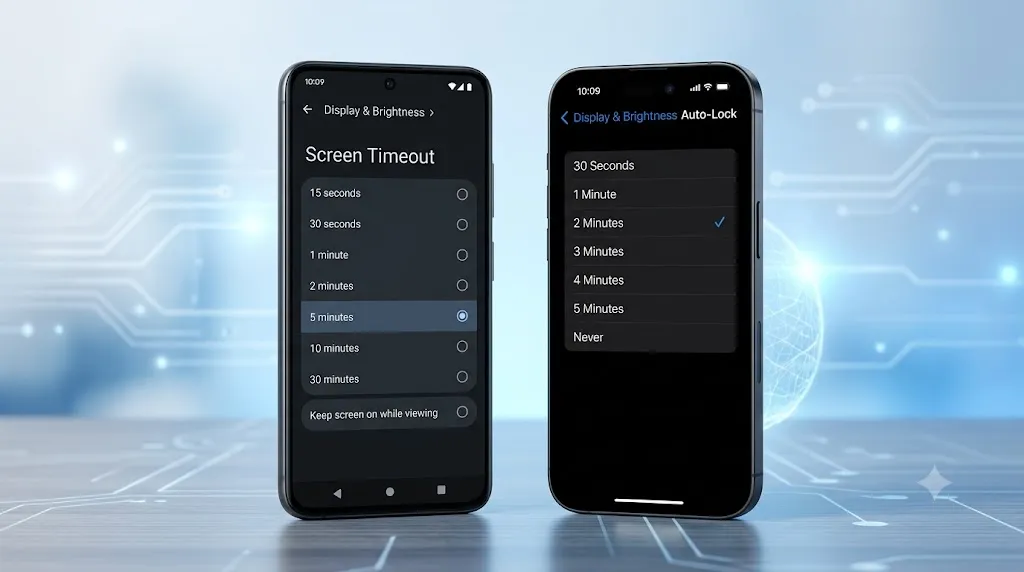
You can keep your phone screen on by increasing the Screen Timeout (Android) or Auto-Lock (iPhone) setting.
- Android: Go to Settings > Display > Screen Timeout (or Sleep) and choose a longer time.
- iPhone: Go to Settings > Display & Brightness > Auto-Lock and select a longer duration or Never, if available.
If your screen still turns off, check Battery Saver, Low Power Mode, or other display restrictions that may be overriding your settings.
Why Your Phone Keeps Turning Off
Your phone is designed to turn off the screen after a short period of inactivity. This behavior isn’t a glitch; it helps save battery power, reduce screen wear over time, and protect your personal information if you set the phone down and walk away.
That said, this automatic screen timeout can quickly become frustrating in situations where you actually need the display to stay awake. For example, you may be:
- Following a recipe while cooking
- Reading an ebook or document
- Using Google Maps during a trip
- Watching a tutorial
- Giving a presentation
- Displaying a QR code
- Monitoring live information
- Studying from online notes
In moments like these, having to constantly touch the screen just to keep it alive gets in the way of what you’re actually trying to do. Fortunately, both Android and iPhone offer simple, built-in ways to keep the display active for longer.
What Is Screen Timeout?
Screen timeout is simply the amount of time your phone waits after your last touch before it turns off the display. It’s worth noting that this setting does not turn your phone off entirely; it only switches off the screen and locks the device once the selected time has passed.
If you’d like to understand the technical side of how screen timeout and display sleep work across Android devices, official Android display timeout documentation provides additional background on display behavior.
Depending on your phone brand, this same setting may appear under a different name:
| Device | Setting Name |
| Android | Screen Timeout |
| Google Pixel | Screen Timeout |
| Samsung Galaxy | Screen Timeout |
| Motorola | Sleep |
| Xiaomi | Sleep |
| OnePlus | Auto Screen Off |
| iPhone | Auto-Lock |
Although the naming differs across brands, every one of these settings controls the same basic thing: how long your display stays on before it goes dark.
Which Screen Timeout Should You Choose?
The right screen timeout really comes down to how you use your phone day to day. A short timeout suits quick, casual use, while a longer one makes sense for tasks that keep you looking at the screen for extended periods.
| Screen Timeout | Best For |
| 30 Seconds | Maximum battery life and privacy |
| 1 Minute | Everyday use |
| 2–3 Minutes | Reading articles and checking documents |
| 5 Minutes | Cooking, studying, presentations, and workouts |
| 10–30 Minutes | Long tasks on supported Android phones |
| Never | Kiosks, demonstrations, or supervised use while charging |
Which Option Should You Use?
| Situation | Best Setting |
| Reading books | 5 Minutes |
| Watching videos | 10 Minutes |
| Google Maps | Default navigation + 5 Minutes |
| Cooking | 10 Minutes |
| Presentations | Never (temporarily) |
| Office work | 5 Minutes |
| Daily use | 1 Minute |
For most users, a 5-minute timeout offers the best balance between convenience, battery life, and security. It’s best to choose Never only when you’re able to manually lock your phone as soon as you’re finished using it.
Android vs iPhone: What’s the Difference?
| Feature | Android | iPhone |
| Screen Timeout | ✅ | ❌ |
| Auto-Lock | ❌ | ✅ |
| Stay Awake while charging | ✅ | ❌ |
| Guided Access | ❌ | ✅ |
| Screen Attention | Pixel | ❌ |
| Smart Stay | Samsung | ❌ |
| Always-On Display | Selected phones | Pro models |
Android and iPhone approach screen timeout in noticeably different ways. Android tends to offer more flexibility overall — depending on the manufacturer, you may find extra features like Stay Awake, Smart Stay, or Keep Screen On While Viewing, and some devices even let the screen stay active while charging.
iPhone, on the other hand, relies on a single Auto-Lock setting to control how long the screen stays active. Supported iPhone models also add a few situational features, such as Always-On Display and Guided Access, for specific use cases.
Understanding which system your phone uses is the first step to picking the right method for keeping your screen on.
When And How to Keep Phone Screen On?
Keeping your display awake for longer comes in handy in plenty of everyday situations. You may want your screen to stay on while:
- Following a recipe in the kitchen
- Reading an ebook or PDF
- Using Google Maps for navigation
- Watching a workout routine
- Studying online
- Reading PDF textbooks
- Attending online classes
- Reviewing lecture slides
- Taking notes during virtual lessons
- Giving a presentation
- Scanning a QR code
- Monitoring stock charts or dashboards
- Using your phone as a second display
- Watching a long tutorial without interruptions
If you only need the screen on for a short task, it’s generally better to increase the timeout rather than switch it off entirely. This approach still gives you uninterrupted use while helping reduce battery drain and keeping your phone more secure. Students often increase the screen timeout while studying so lecture notes or PDF books remain visible without constantly touching the screen.
Business professionals often keep the screen awake during presentations, meetings, barcode scanning, or when displaying QR codes for clients.
What You’ll Learn in This Guide
This guide walks through everything you need to know about keeping your phone screen on, no matter which device you’re using.
By the end, you’ll know:
- How to keep your phone screen on using Android settings
- How to stop screen timeout on Samsung, Google Pixel, Motorola, Xiaomi, OnePlus, and other Android phones
- How to change Auto-Lock on iPhone
- How to keep your screen on while charging
- How to stop your screen from turning off in specific apps
- Common reasons your screen still turns off
- Battery and security tips before choosing longer screen timeout settings
- Answers to the most common questions about phone screen timeout
How to Keep Your Phone Screen On on Android
Android phones give you direct control over how long the screen stays on before it turns off, and for most devices, adjusting the Screen Timeout or Sleep setting is all it takes.
The exact menu layout can look slightly different depending on your phone’s brand, but the overall steps stay very similar across devices.
Method 1: Change the Screen Timeout
This is the simplest and most reliable way to keep your Android phone screen on longer.
Steps
- Open Settings.
- Tap Display.
- Select Screen Timeout or Sleep.
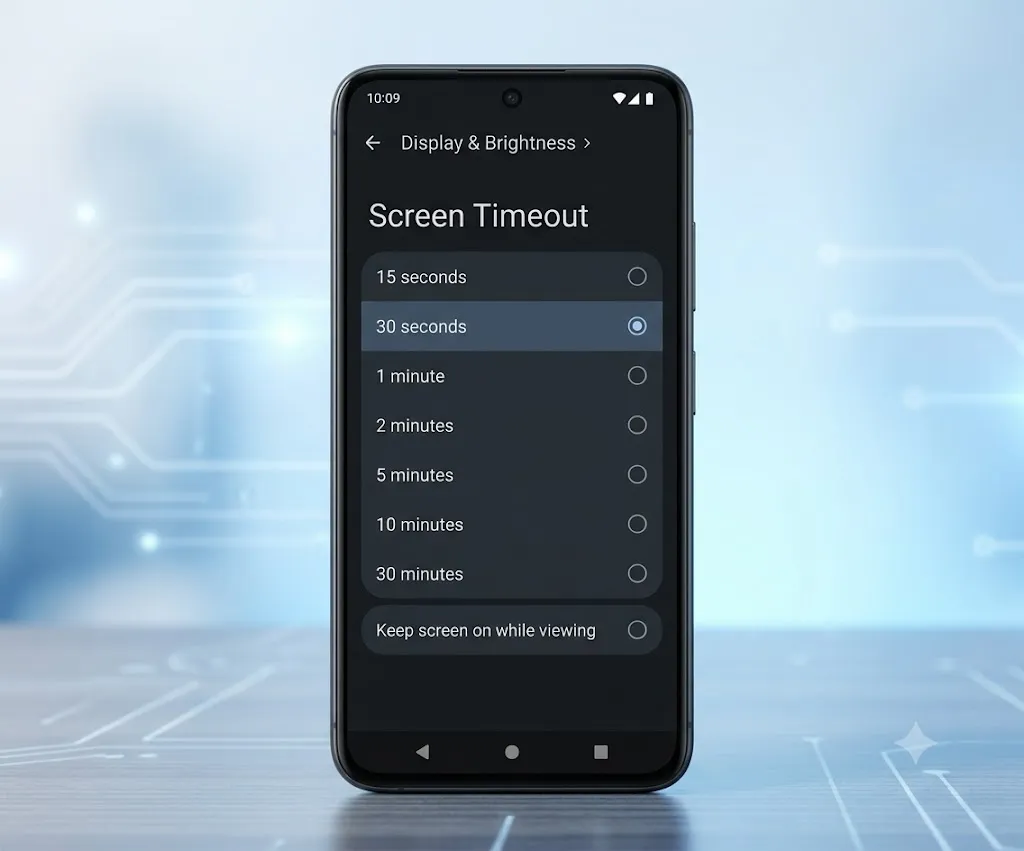
These steps follow the standard Android display settings found on most modern devices. Since Android manufacturers customize their own interfaces, menu names can vary slightly between brands and software versions if you can’t locate Screen Timeout or Sleep, try the search bar inside the Settings app or check your phone manufacturer’s support documentation.
Some Android phones also include a Never option. When available, choosing it keeps the screen on until you lock the device manually yourself.
Method 2: Keep the Screen On While Charging
If you often use your phone propped up on a desk or as a makeshift dashboard, Android’s Stay Awake feature is worth turning on. Once enabled, the screen stays on automatically whenever the phone is plugged in and charging.
How to Enable Stay Awake
- Open Settings.
- Go to About Phone.
- Tap Build Number seven times to unlock Developer Options.
- Return to Settings.
- Open Developer Options.
- Turn on Stay Awake.
This option works particularly well if you:
- Follow recipes in the kitchen
- Monitor dashboards
- Display presentations
- Use your phone as a clock
- Keep Google Maps open while charging
Method 3: Use Smart Features That Keep the Screen Awake
Many Android brands build in features that can detect when you’re actually looking at the screen. Instead of turning the display off after a fixed amount of time, the phone keeps it awake only while you’re engaged with it — which also helps conserve battery, since the screen doesn’t stay lit unnecessarily.
How to Keep the Screen On While Viewing (Samsung)
Samsung Galaxy devices include a feature called Keep Screen On While Viewing. It relies on the front camera to detect your face, and as long as you’re looking at the display, the screen stays awake.
To enable it:
- Open Settings.
- Tap Advanced Features.
- Select Motions and Gestures.
- Turn on Keep Screen On While Viewing.
This feature is especially useful for:
- Reading articles
- Watching online classes
- Browsing long documents
- Reviewing spreadsheets
- Studying
Because the screen automatically turns off once you look away, it also helps cut down on unnecessary battery usage.
How to Keep the Screen On on Google Pixel
Google Pixel phones rely on the standard Android display settings for controlling timeout.
To change the timeout:
- Open Settings.
- Tap Display.
- Select Screen Timeout.
- Choose the longest duration that fits your needs.
Some Pixel models also support a feature called Screen Attention, which checks whether you’re looking at the screen before letting it turn off.
To turn it on:
- Open Settings.
- Tap Display.
- Select Screen Attention.
- Turn it on.
How to Keep the Screen On on Motorola Phones
Motorola phones label this setting Sleep rather than Screen Timeout, but it works the same way.
Steps
- Open Settings.
- Tap Display.
- Select Sleep.
- Choose a longer timeout.
Some Motorola devices also include Moto Display, which briefly wakes the screen when notifications arrive or when it detects movement. While this doesn’t keep the display on continuously, it does reduce how often you need to unlock your phone.
How to Keep the Screen On on Xiaomi Phones
Xiaomi phones running HyperOS or MIUI sometimes place display settings in a slightly different spot than other Android devices.
Steps
- Open Settings.
- Tap Always-on Display & Lock Screen or Display.
- Open Sleep.
- Select a longer timeout.
How to Keep the Screen On on OnePlus Phones
On OnePlus devices, this setting goes by the name Auto Screen Off.
Steps
- Open Settings.
- Tap Display & Brightness.
- Select Auto Screen Off.
- Choose the timeout you prefer.
This shows the time and notifications while the phone is locked, but like similar features on other brands, it does not keep apps open.
How to Keep the Screen On on Oppo, Vivo, Realme, and Nothing Phone
Most Android brands use fairly similar display settings, even when the menu names differ slightly from one manufacturer to another.
If you have an Oppo, Vivo, Realme, or Nothing Phone, follow these steps:
Steps
- Open Settings.
- Tap Display or Display & Brightness.
- Select Screen Timeout, Sleep, or Auto Screen Off.
- Choose a longer timeout.
Why Does My Android Screen Still Turn Off?
If you’ve already increased the screen timeout but the display keeps turning off anyway, there’s a good chance another setting is quietly overriding it.
The most common causes include:
- Battery Saver is enabled.
- Adaptive Battery limits screen activity.
- Digital Wellbeing or Focus Mode changes display behavior.
- A work or school profile controls device settings.
- A third-party app changes screen timeout automatically.
If your phone was provided by your employer or school, some display settings may be controlled through device management policies. Contact your IT administrator if you can’t change the timeout.
How Adaptive Battery Can Affect Screen Timeout
Some Android phones use a feature called Adaptive Battery to cut down on power usage. It works by learning how you typically use your phone, then limiting background activity to conserve battery.
While Adaptive Battery usually doesn’t change your screen timeout setting directly, it can still influence how certain apps behave while running in the background. If you’re noticing unusual display behavior, it’s worth temporarily disabling Battery Saver or Adaptive Battery to see whether that resolves the issue.
It’s a good idea to check through these settings before assuming there’s something wrong with your hardware — most timeout issues turn out to be caused by battery-saving features rather than an actual phone fault.
How to Keep Your Phone Screen On During Calls
If your screen goes dark during phone calls, the culprit is usually the proximity sensor. This small sensor sits near the front camera and turns off the display whenever you hold the phone close to your ear, which helps prevent accidental touches mid-call.
If the screen stays black even after you move the phone away from your face, try these fixes:
- Clean the area around the front camera and earpiece.
- Remove thick screen protectors that may block the sensor.
- Restart your phone.
- Install any available software updates.
- Check your Phone app settings if your device offers call display options.
If you regularly use speakerphone or make video calls, your screen should already stay on while you’re actively interacting with the device.
How to Keep Your Phone Screen On in Specific Apps
In many cases, you only need the screen to stay on while you’re inside one particular app — and thankfully, plenty of apps already prevent the display from sleeping during active use.
Common examples include:
- Google Maps while navigating
- YouTube during video playback
- Netflix while streaming
- Kindle or other ebook apps while reading
- Recipe apps while cooking
- Workout apps during exercise sessions
If your screen still turns off inside these apps, try increasing your phone’s overall screen timeout before opening the app. On iPhone, Guided Access is also a useful option, letting you keep one app active without giving access to the rest of your device.
Travelers often increase the screen timeout while using digital boarding passes, train tickets, hotel reservations, or travel itineraries. This prevents the screen from locking while checking in or scanning QR codes.
How to Keep Your Phone Screen On on iPhone
Apple uses the Auto-Lock setting to control how long your iPhone stays awake once you stop actively using it. If your screen keeps turning off too quickly while you’re reading, following directions, or watching a tutorial, adjusting this setting usually solves the problem right away.
Method 1: Change the Auto-Lock Setting
This is the easiest and most direct way to keep your iPhone screen on longer.
Steps
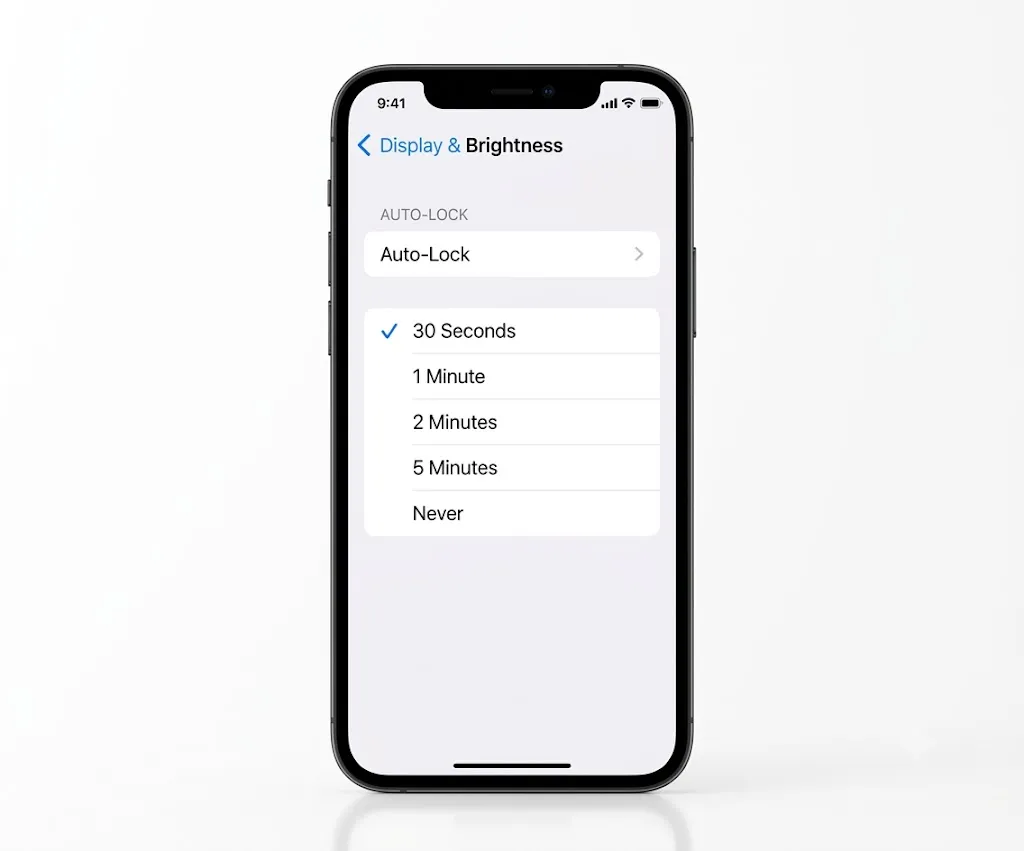
- Open Settings.
- Tap Display & Brightness.
- Select Auto-Lock.
If you select Never, your iPhone keeps the screen on continuously until you press the Side button to lock it yourself. Apple recommends adjusting Auto-Lock specifically for tasks like reading, navigation, or presentations. Just keep in mind that longer Auto-Lock times do increase battery usage, so it’s worth switching back to a shorter timeout once you’re finished.
How to Keep Your Screen On for One App
There are plenty of situations where you only want a single app to stay open for example, you might want to:
- Read a recipe while cooking
- Display a boarding pass
- Show a QR code
- Give a presentation
- Let a child watch a video
- Keep a checklist on the screen
In cases like these, Guided Access is a smarter choice than simply setting Auto-Lock to Never.
Parents often use Guided Access before handing an iPhone to a child. It keeps one app open while preventing accidental exits or unwanted changes to the device.
Turn On Guided Access
- Open Settings.
- Tap Accessibility.
- Select Guided Access.
- Turn it on.
- Set a passcode if prompted.
- Now open the app you want to use.
- Triple-click the Side button, then tap Start.
Once enabled, your iPhone stays locked into that one app until you decide to end the session. To stop it, triple-click the Side button again, enter your passcode, and tap End.
Auto-Lock vs. Always-On Display
It’s a common mix-up, but these two features actually do very different things.
| Feature | What It Does |
| Auto-Lock | Controls how long your screen stays on before it locks. |
| Always-On Display | Shows the lock screen with the clock and notifications while the phone is locked. |
If your goal is to keep Maps, Notes, Safari, Photos, or another app open on screen, you’ll want to adjust Auto-Lock. If you simply want to glance at the time and notifications without fully unlocking your phone, Always-On Display is the better fit.
How to Turn On Always-On Display
Always-On Display is only available on supported iPhone models. It keeps the Lock Screen visible — showing the time, widgets, and notifications — while using significantly less power than leaving the full display active. Importantly, it doesn’t keep apps open, nor does it override Auto-Lock in any way.
Supported iPhone Pro models include this feature by default.
To enable it:
- Open Settings.
- Tap Display & Brightness.
- Select Always-On Display.
- Turn it on.
Depending on your iPhone model, you may also be able to choose whether to show the wallpaper and notifications. Just remember that this feature doesn’t keep any apps actively running on screen.
Why Is Auto-Lock Greyed Out?
Occasionally, you may find that you can’t change the Auto-Lock setting at all because it’s greyed out. This usually happens because another setting is taking priority and controlling it instead.
| Problem | Solution |
| Low Power Mode is enabled | Turn it off in Settings > Battery. |
| Screen Time restrictions | Check your Screen Time settings. |
| Work or school device | Your organization may manage Auto-Lock. |
| Temporary software issue | Restart your iPhone and try again. |
If Auto-Lock becomes available again once you turn off Low Power Mode, you’ve found the source of the problem.
How to Stop Your iPhone Screen From Dimming
Sometimes your screen dims noticeably before it actually turns off — and that’s a different issue from Auto-Lock entirely. Your iPhone may dim the display because of:
- Low Power Mode
- Auto-Brightness
- High device temperature
- Battery-saving features
Try these fixes:
- Increase screen brightness.
- Turn off Low Power Mode.
- Move your phone away from direct sunlight.
- Allow the device to cool if it feels hot.
- Adjust Auto-Lock to a longer time.
Can You Keep Your Phone Screen On While Charging?
Yes, both Android and iPhone let you keep the screen on while charging, though each handles it a little differently.
Many Android devices include a built-in Stay Awake option tucked inside Developer Options, which keeps the display active for as long as the phone stays connected to power. Availability can vary depending on your specific phone manufacturer and Android version.
On iPhone, there’s no dedicated charging-specific setting. Instead, you’ll want to set Auto-Lock to Never or a longer duration while the phone is plugged in.
This approach works well if you’re:
- Following a recipe
- Giving a presentation
- Using your phone as a desk clock
- Watching a tutorial
- Reading long documents
Once you’re finished, it’s a good habit to return Auto-Lock to a shorter setting so you’re not sacrificing battery life unnecessarily.
Battery and Security Considerations
Keeping your phone screen on longer is convenient, but it’s worth weighing the trade-offs before making it a permanent habit.
The display remains one of the biggest drains on any phone’s battery, and the longer it stays lit, the faster that battery drains. On top of that, leaving your phone unlocked and visible for long stretches can increase the risk of someone accessing your personal information if you happen to step away.
For most people, these settings strike the right balance:
| Screen Timeout | Recommended For |
| 1 Minute | Daily use |
| 5 Minutes | Reading, cooking, presentations |
| Never | Temporary supervised use only |
If you do choose Never, just remember to lock your phone manually as soon as you’re done using it.
Should You Use a Third-Party App to Keep Your Screen On?
Most people won’t ever need a third-party app for this, since both Android and iPhone already include reliable built-in screen timeout settings. That said, if you need more advanced control, a handful of Android apps can keep the screen awake specifically while certain apps are open.
Examples include:
- Caffeine
- Stay Alive!
- Keep Screen On
If you do decide to try one, only download apps from trusted sources such as the Google Play Store, and keep in mind that apps with screen control permissions can have an impact on battery life.
Screen Still Turning Off? Try These Fixes
If your phone screen keeps turning off even after adjusting the timeout, work through these steps in order:
- Make sure Screen Timeout or Auto-Lock is set correctly.
- Turn off Battery Saver or Low Power Mode.
- Restart your phone.
- Install the latest software update.
- Check whether a work or school profile controls your device.
- Remove any recently installed apps that manage display settings.
- Reset your display settings if the problem continues.
In most cases, screen timeout problems trace back to battery-saving features or a temporary software glitch rather than a deeper hardware issue.
If your phone is behaving unusually after being exposed to moisture, the issue may not be related to display settings alone. Our guide on sound to get water out of phone explains safe ways to remove water from your device’s speakers before assuming there’s a hardware problem.
How We Verified This Guide
To prepare this guide, we reviewed the latest display settings available on Android and iPhone, compared menu locations across major smartphone brands, and cross-checked device behavior using official documentation from Apple and Android device manufacturers. Because settings can vary slightly by model and software version, the steps in this guide are designed to work across Samsung Galaxy, Google Pixel, Motorola, Xiaomi, OnePlus, Oppo, Vivo, Realme, Nothing Phone, and iPhone devices.
Frequently Asked Questions
How do I stop my phone screen from turning off?
Open your phone’s display settings and increase the screen timeout. On iPhone, change the Auto-Lock setting; on Android, adjust Screen Timeout or Sleep.
Can I keep my phone screen on forever?
Some Android phones and iPhones let you choose Never for screen timeout. However, this option is best used only for short periods, since it draws more battery and reduces overall security.
Why does my phone screen keep turning off even after changing the timeout?
Battery Saver, Low Power Mode, work profiles, or third-party apps may be overriding your display settings. It’s worth checking these before restarting your phone.
Does keeping the screen on damage the battery?
Keeping the display on doesn’t damage the battery immediately, but it does use more power. Over time, frequent long screen-on sessions may contribute to slightly faster battery wear.
Does Always-On Display keep apps open?
No. Always-On Display only shows the lock screen, clock, and notifications and it doesn’t prevent apps from timing out.
Can I keep my screen on during Google Maps navigation?
Yes. Most navigation apps automatically keep the screen awake while you’re actively navigating. If yours doesn’t, increase your phone’s screen timeout before starting your trip.
Can I keep the screen on while watching YouTube?
Yes. Many video apps keep the screen awake during playback. If your screen still turns off, increase the timeout in your display settings.
Our Testing Experience
We reviewed the latest display settings available on Android and iPhone and compared how major phone brands handle screen timeout. The steps in this guide apply to Samsung Galaxy, Google Pixel, Motorola, Xiaomi, OnePlus, Oppo, Vivo, Realme, Nothing Phone, and iPhone devices. Keep in mind that menu names may vary slightly depending on your phone model and software version, though the overall process remains largely the same across devices.
Final Thoughts
In most cases, keeping your phone screen on only takes a small settings change, but finding the right option can be confusing because every phone manufacturer organizes its menus differently. Over the years, Android brands have introduced their own names and features for screen timeout, while Apple relies on Auto-Lock and a few additional display settings. That’s why people often think they’re dealing with a software problem when the solution is simply hidden in a different menu.
If you’re reading, studying, navigating with Google Maps, cooking, working, or giving presentations, increasing your screen timeout can make your phone much easier to use. At the same time, it’s worth remembering that longer screen-on times consume more battery and leave your device unlocked for longer, so choosing the right balance is important.
For most people, a timeout of around five minutes provides the best combination of convenience, battery life, and security. If you only need the screen to stay on temporarily, increase the timeout for that task and switch it back afterward.
Technology should adapt to the way you use it, not interrupt you. Once you know where these settings are, keeping your phone screen on becomes a quick adjustment instead of a recurring frustration.